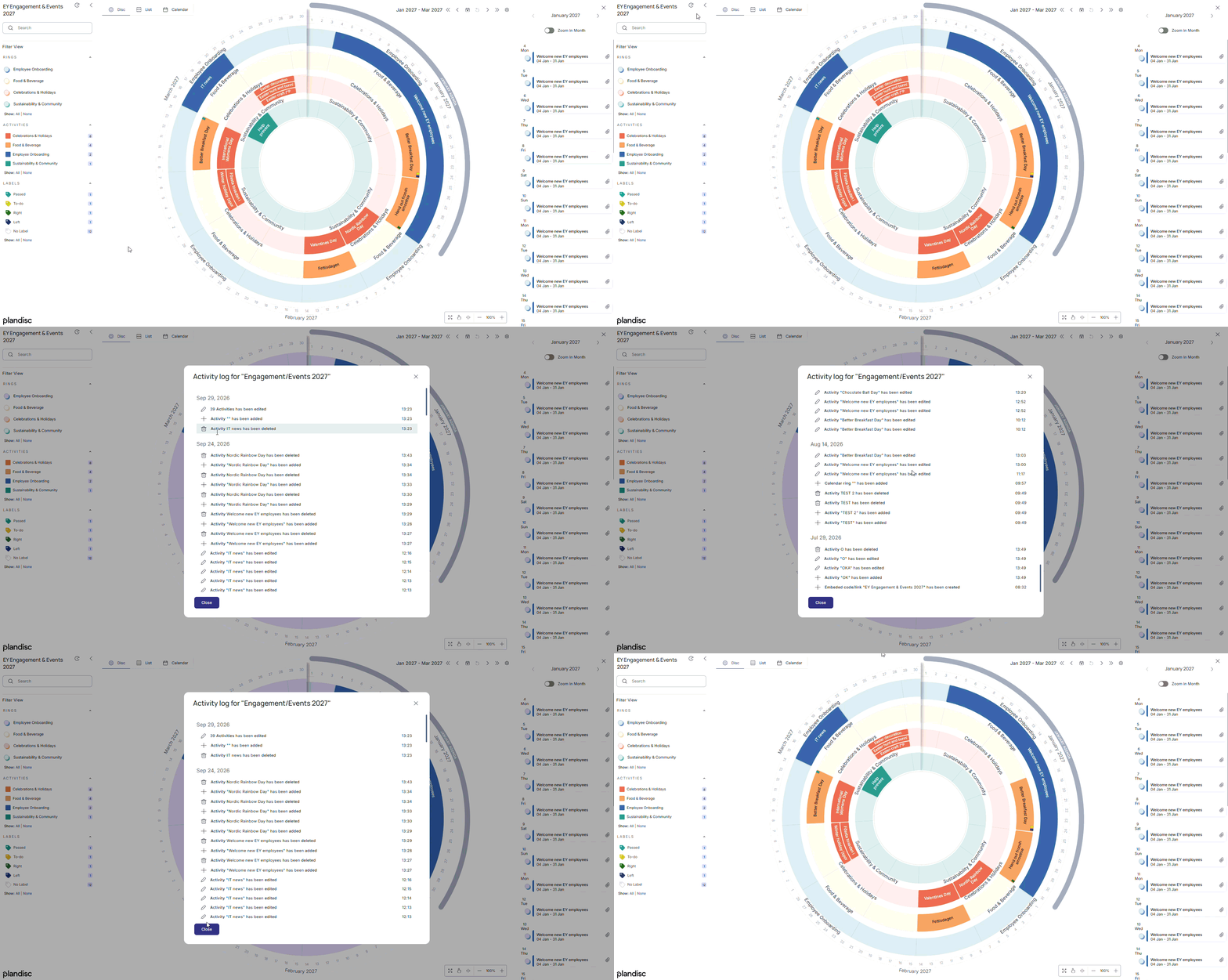
View activities
Hover over an activity to see some of its details in the center of the plandisc. Click on it to see all the information in the sidebar on the right.
Filtering
You can filter rings, activity groups, and labels in the shared plandisc.
- Hover over the ring, activity group, or label you want to hide, then click the eye icon.
List view / Calendar view
The shared plandisc opens in circular (disc) view by default, but you can switch to list view or calendar view any time. The views stay in sync, so a change in one shows up in the other right away.
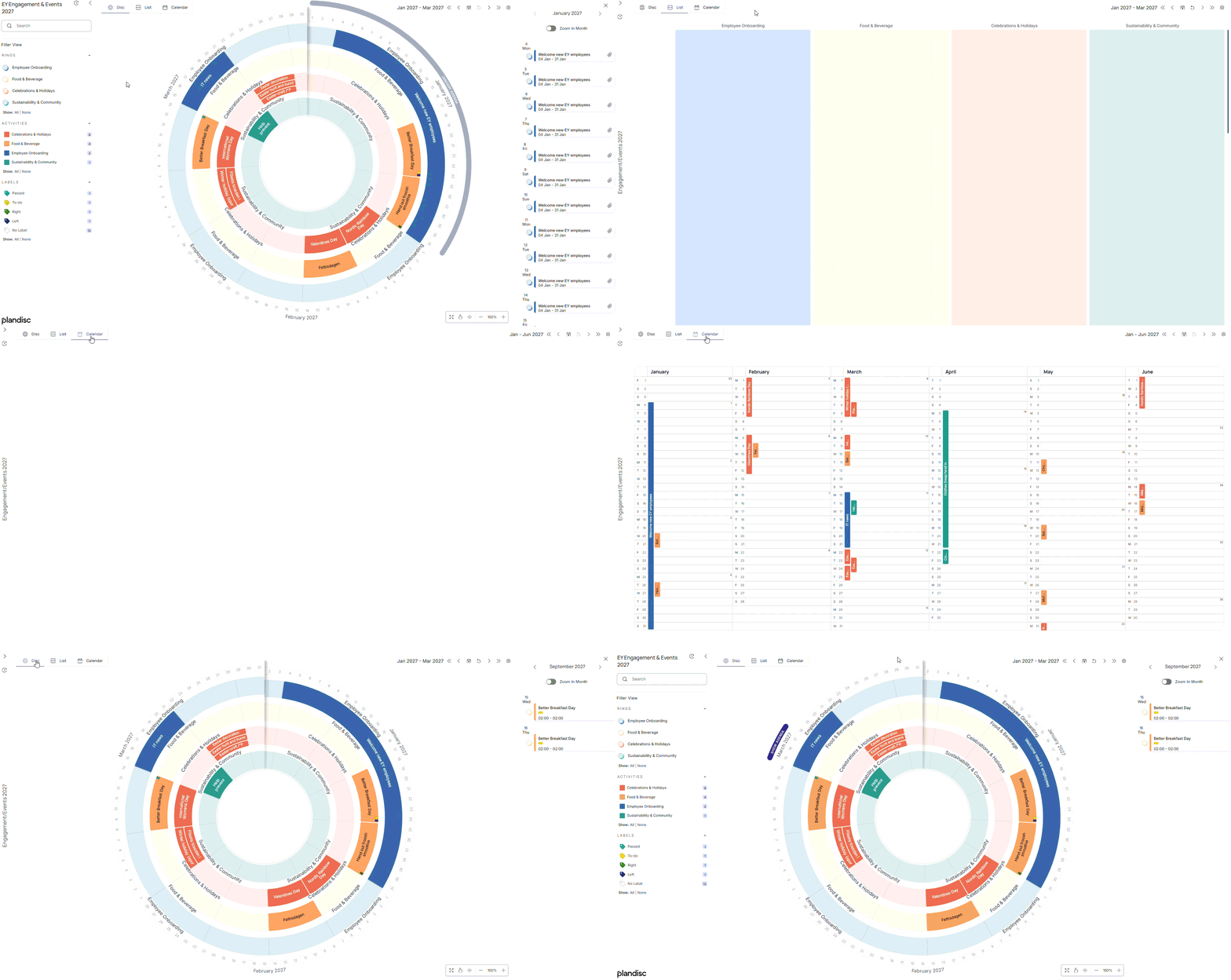
Show agenda
You can see each month's agenda as a list.
- Hover over the month you want, then click Show Agenda.
- To get a closer look, zoom in on the month — you'll only see the activities planned for that month.
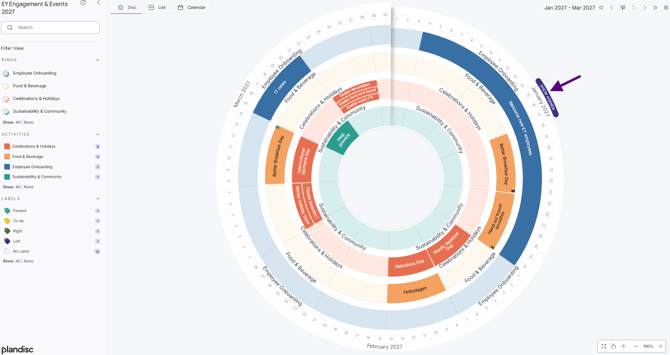
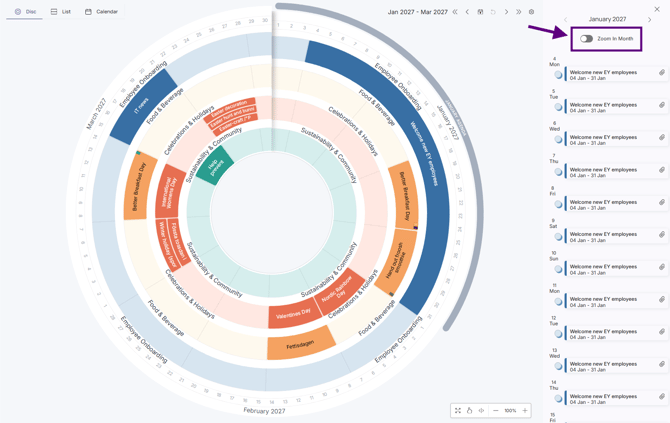
Time navigation
Whether you can move through time depends on the plandisc owner's settings. When it's turned on, use the arrows to move backward and forward in time.
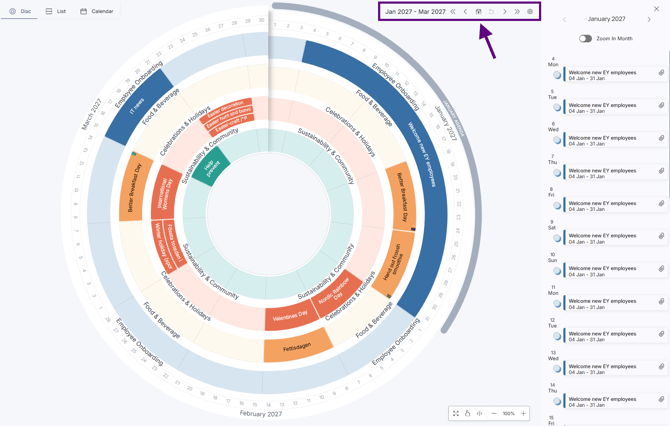
Activity log
Whether you can move through time depends on the plandisc owner's settings. When it's turned on, use the arrows to move backward and forward in time.