
Rings are the building blocks of your plandisc. They hold your activities, mark your dates, and label what's inside, so your whole plan stays easy to read at a glance. This article shows you how to add rings and set them up the way you want.
Add a ring
-
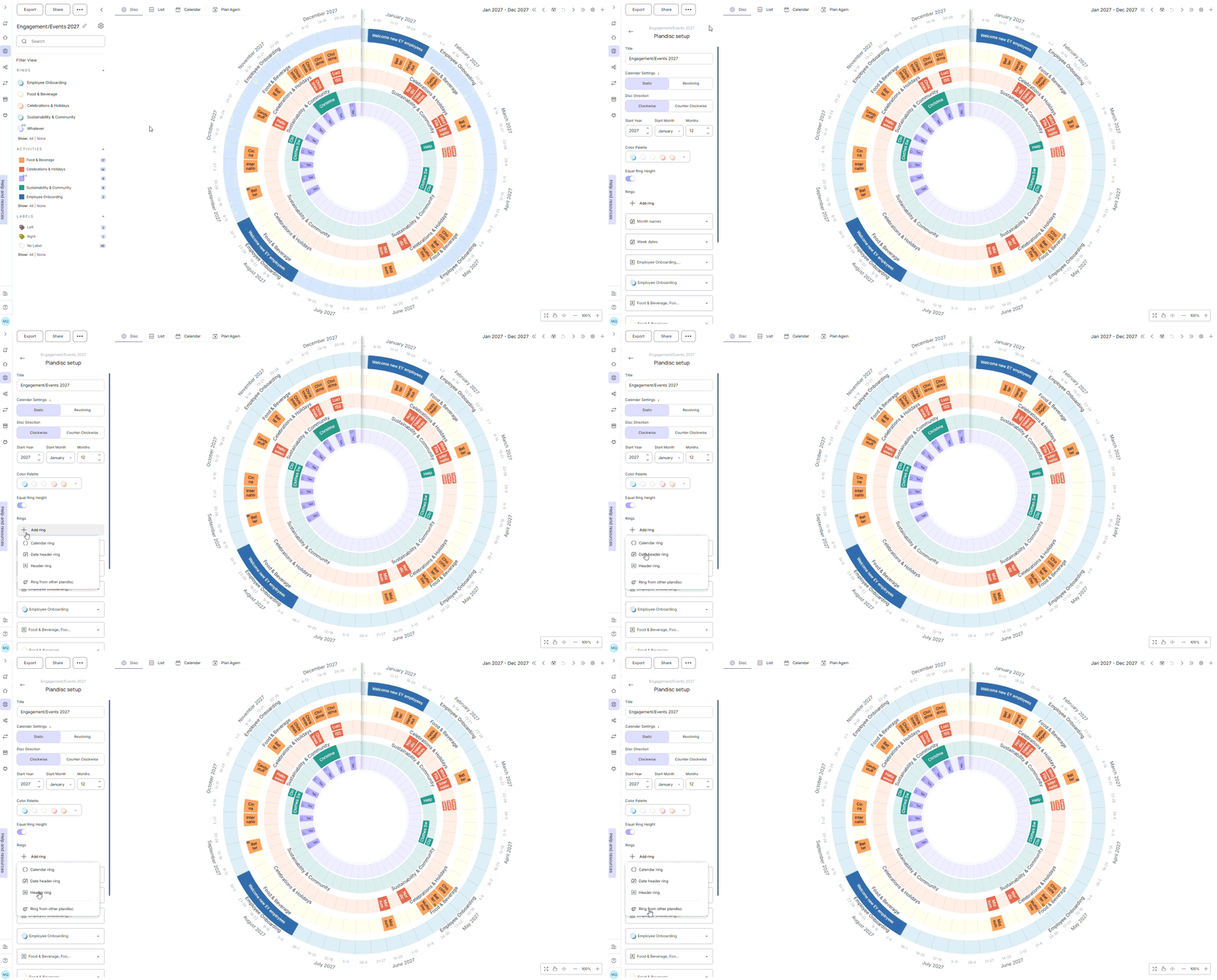
Go to Plandisc setup.
- Click Add ring.
The three ring types
You can choose from three ring types:
- Calendar ring – holds your activities.
- Date header ring – shows your calendar units, like weeks or months.
- Header ring – sits on top of a calendar ring, so you can label what's inside.
You can also bring in a ring from another plandisc. See "Add a ring from another plandisc" below.
Settings you can change on any ring
No matter which type you pick, you can:
- Change the color.
- Change the height. Want all your rings the same height? Toggle on "Equal Ring Height" to do it in one click.
- Copy the ring.
- Move the ring.
- Delete the ring.
Calendar ring settings
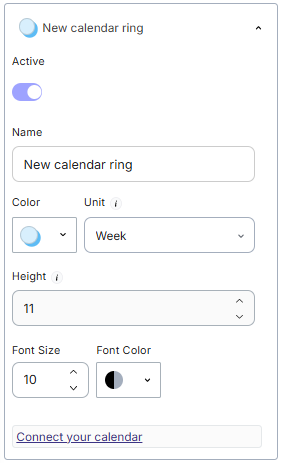
Open a calendar ring to adjust:
- Active – turn the ring on or off.
- Name – give the ring a name.
- Color – pick a color for the ring.
- Unit – choose day, week, month, or quarter. This sets how the ring's timeline is divided.
- Height – set the ring's height, as a percentage.
- Text – choose the color and size of the text.
Date header ring settings
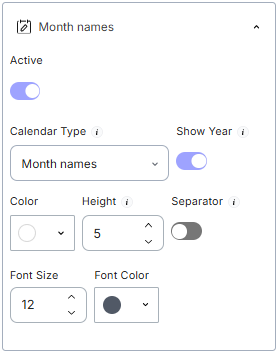
Open a date header ring to adjust:
- Active – turn the ring on or off.
- Calendar type – show week dates, week numbers, month names, or quarters.
- Separator lines – turn separator lines on or off.
- Color – pick a color for the ring.
- Height – set the ring's height, as a percentage.
- Text – choose the color and size of the text.
Header ring settings
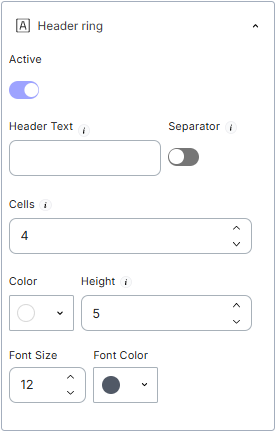
Open a header ring to adjust:
- Active – turn the ring on or off.
- Header text – add or edit the text.
- Separator lines – turn separator lines on or off.
- Cells – set how many cells the ring has.
- Color – pick a color for the ring.
- Height – set the ring's height, as a percentage.
- Text – choose the color and size of the text
Add a ring from another plandisc
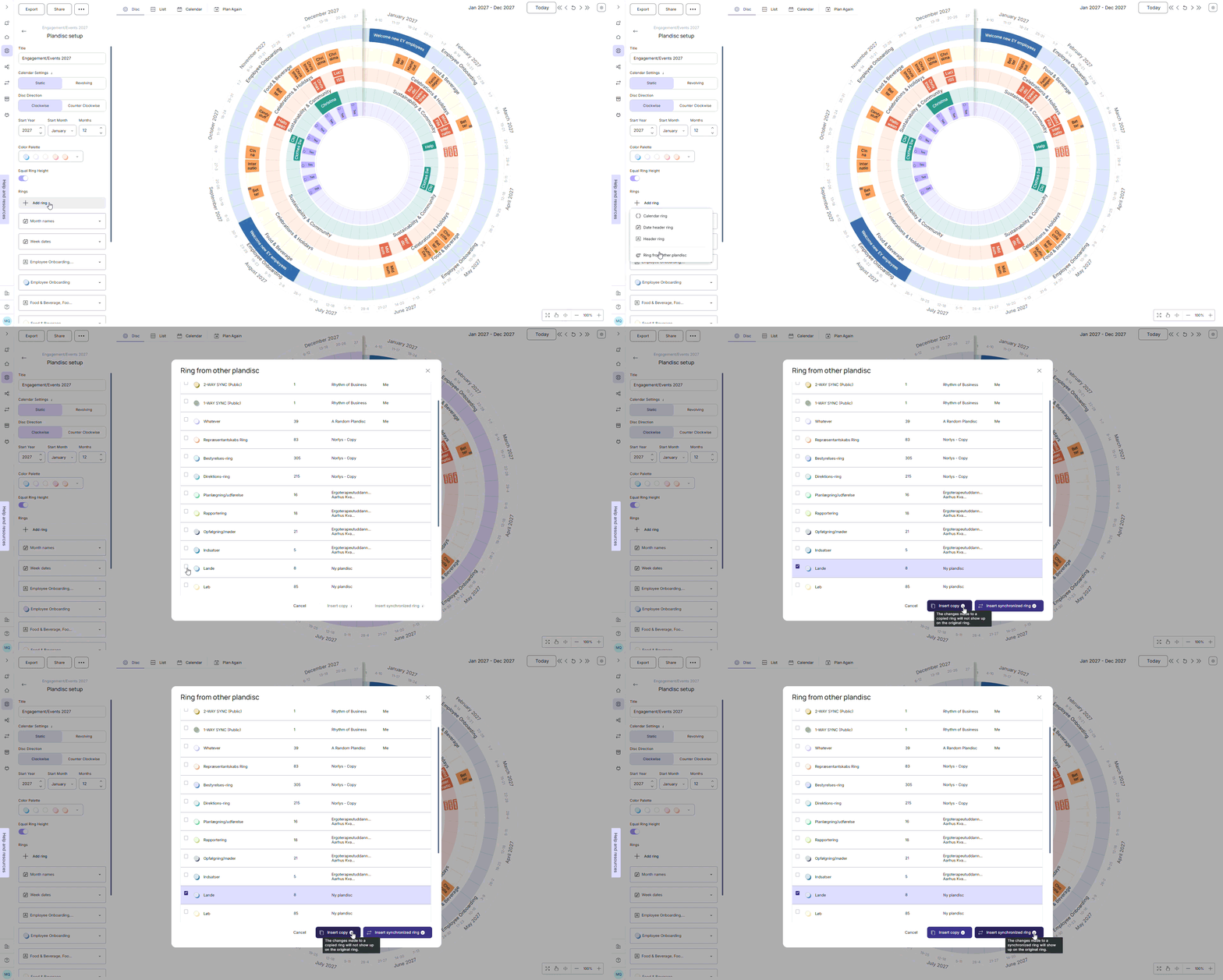
You don't have to build every ring from scratch. If you already have a ring in another plandisc, you can bring it into this one.
- Click Add ring, then Ring from other plandisc.
- Choose the ring you want to add.
- Choose how to add it: Copy creates an independent version, so changes to one don't affect the other. Synchronized ring keeps both versions identical, so any change you make shows up in real time on both.
Once the ring is added, you can still change its color and height, or turn it on and off, just like any other ring.