
Once your rings are set up, you're ready to fill your circular calendar with activities. This article shows you how to create an activity, set its time, repeat it, and add the details your team needs — like files, tasks, a location, attendees, and reminders.
Create an activity
-
Open your circular calendar from the Dashboard or from My Plandiscs.
-
Click the cell in the activity ring where you want the activity to start.
This opens the edit window, where you can set up everything about the activity.
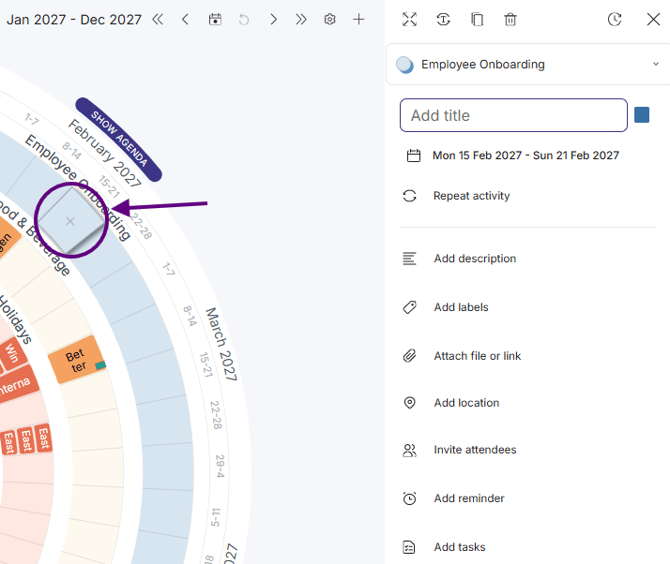
Title and layout
-
Title: type a title for the activity.
-
Expand: expands the sidebar for a better view.
-
Horizontal or vertical: use the icon on the left to switch how the title is shown.
-
Duplicate: use the middle icon to duplicate the activity.
-
Delete: use the icon on the right to delete the activity.
Activity group (color)
As you use colors, Plandisc keeps count of how many times you've used each one, so you can see your color statistics at a glance. Colors also work as activity groups, so you can filter your circular calendar by activity type later.
Set the time for an activity
Click the date field to set when the activity happens, and in which time zone.
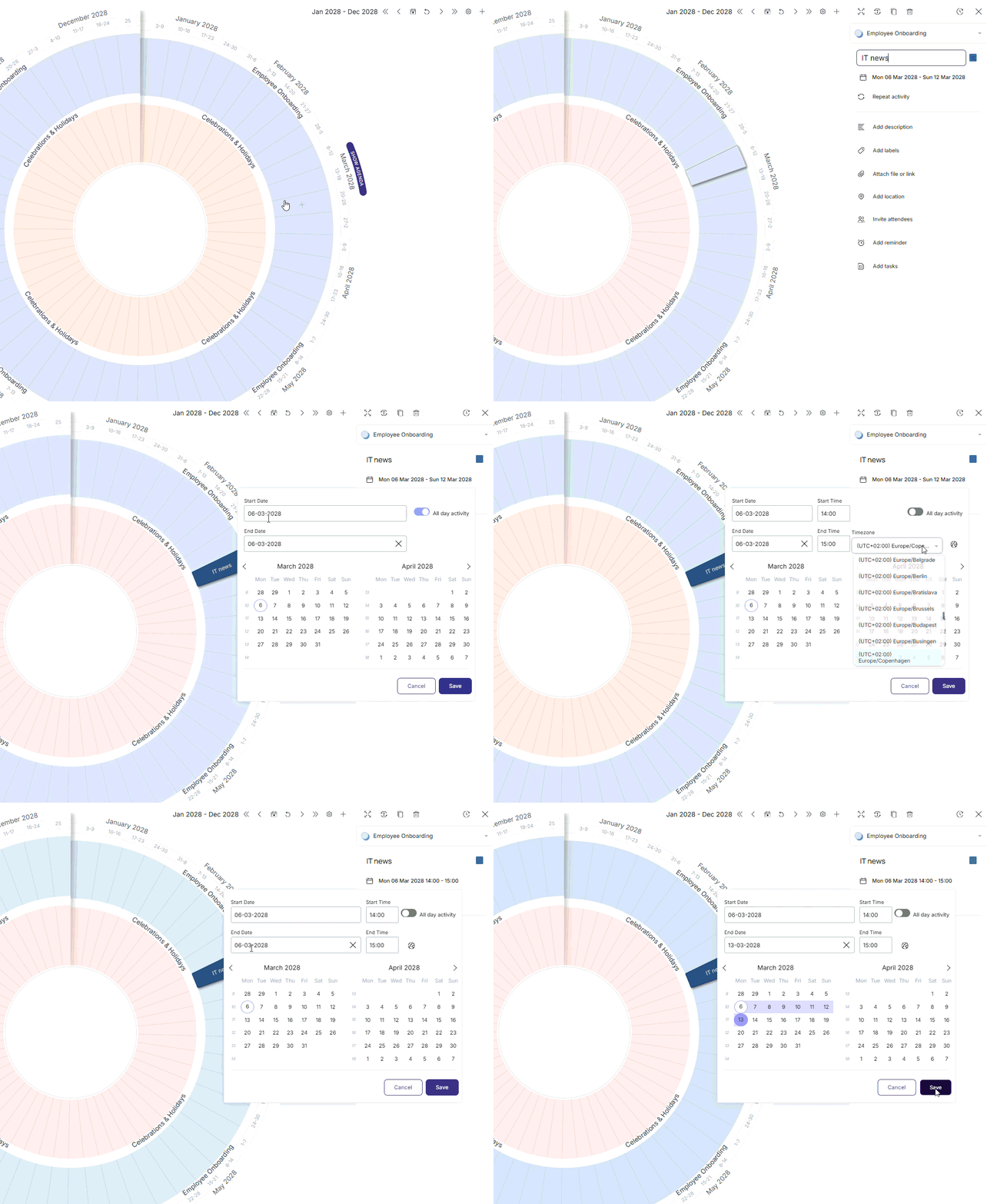
For an activity on a single day:
-
Choose the date in the calendar.
-
Choose all-day, or set a specific time period.
-
Save.
For an activity spanning a period:
-
Choose a start date and an end date.
-
Choose all-day, or set a start time and an end time.
-
Save.
Create a recurring activity
-
Create a single activity on its first day.
-
Click "Repeat activity."
-
Choose how often it repeats: daily, weekly, monthly, or yearly.
-
Choose when it stops repeating:
-
Never
-
Until a specific date
-
After a set number of times
-
-
Click OK.
Plan again next year
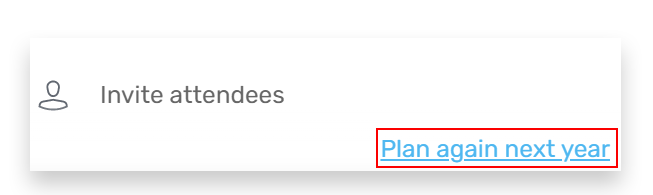
- Clicking "Plan again next year" in the bottom of the activity
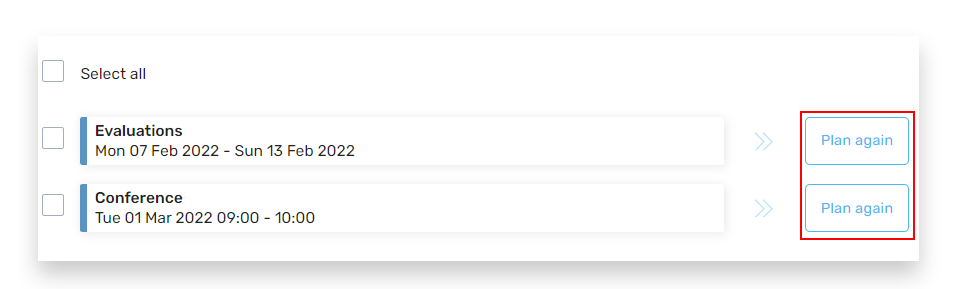
- Click "Plan again" in the menu in the top. A list of all activities in the plandisc will occur and you can click "Plan again" to have it repeated next year.
Add description
Describe the activity here
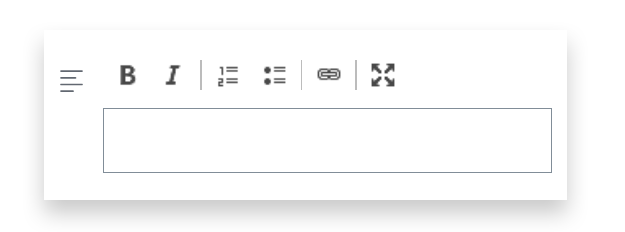
You can use
- Bold
- Italic
- Numbered list
- Bulleted list
- Link
Drag file or tap + button

You can attach documents, pictures or other types of files to your activity.
You can do it in two ways
- Find your file on your computer, highlight it and drag it to the edit box and drop
Tap the “+” button, browse your computer, and open the file.
Add location
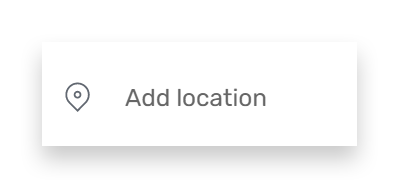
Type in e.g a meeting room or an address.
Invite attendees
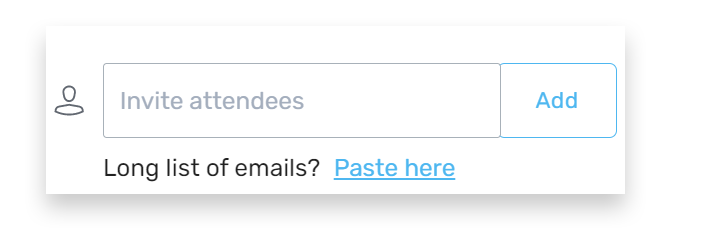
Type in the email addresses of the attendees.
Add reminder
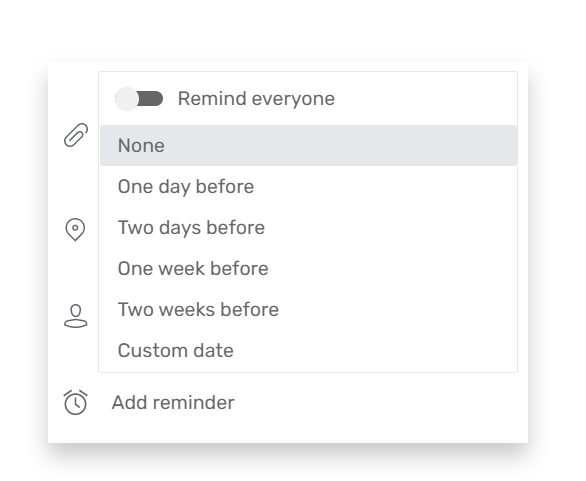
If you choose to add a reminder you and the attendees get a reminder by email
You can choose to send a reminder
- A day before
- Two days before
- A week before
- Two weeks before
- Custom date
More guides
Create a circular calendar and choose the basic settings
Add and adjust rings in your circular calendar