
Before you start
Make sure you have:
- An active Outlook account (Microsoft 365)
- Access to Plandisc as an admin or a user with calendar permissions
If you use a Microsoft 365 account, your IT administrator may need to approve the connection first. Send them this guide: How to grant admin consent for Outlook
Set up the sync
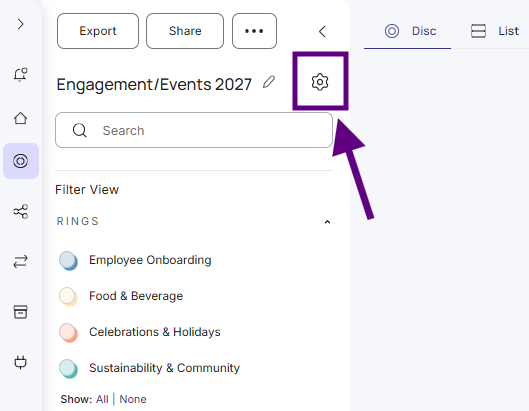
- Go to Plandisc Setup.
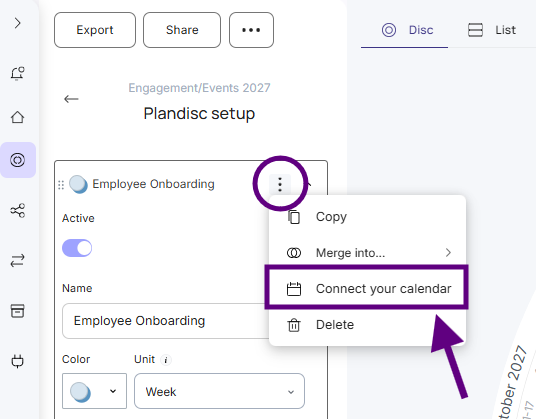
- Find the ring you want to sync. Hover over it, click the three dots next to it, and select “Connect your calendar”.
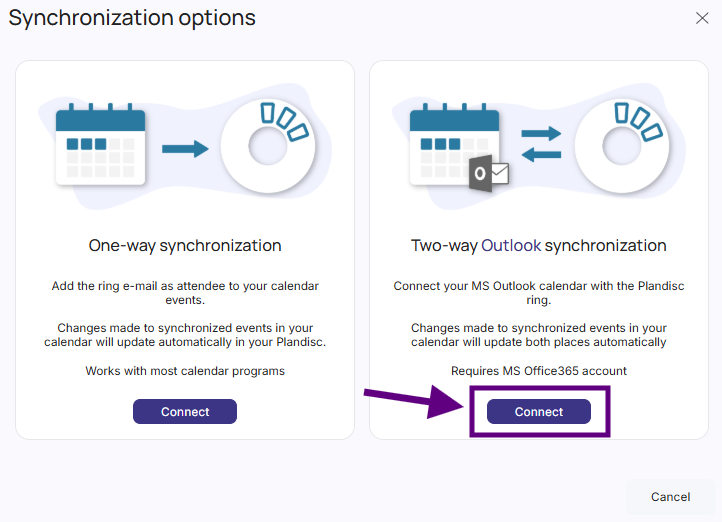
- Select “Two-way Outlook synchronization”.
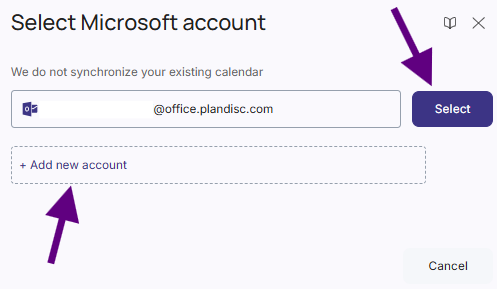
- Add or select your Outlook account.
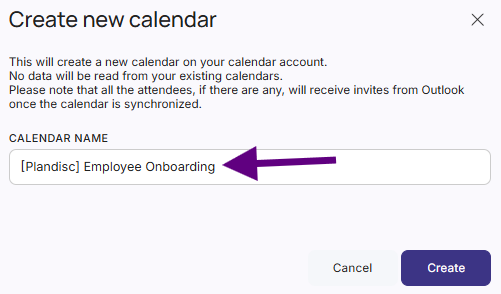
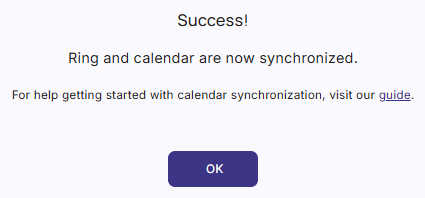
- Then give the new calendar a name. This is the name you’ll see in Outlook. Click “Create”. The sync starts. A message appears when it’s done.
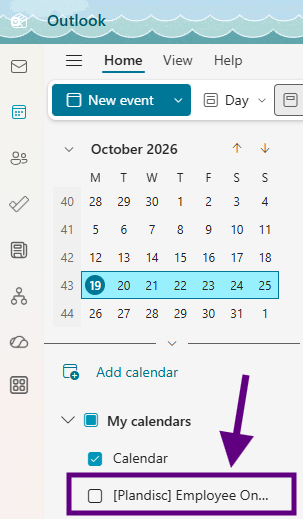
- Open Outlook and find the new calendar under “My Calendars”. Select the checkbox next to it to show the ring’s activities in Outlook.
Add activities from Outlook
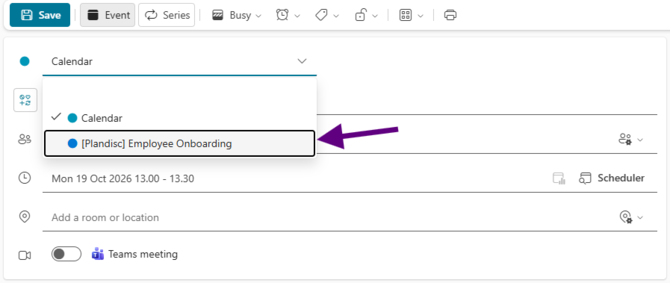
To add an activity to the ring from Outlook, create an event as usual and select the Plandisc calendar when you create it.
Good to know
- Changes go both ways. You can create, edit, and delete activities in Plandisc or in Outlook.
- Syncing can take some time. If a change doesn’t show up right away, wait a little and check again.