This article explains how to install and use the Plandisc app in Microsoft Teams. The app makes it possible to access and edit your plandiscs directly in Teams
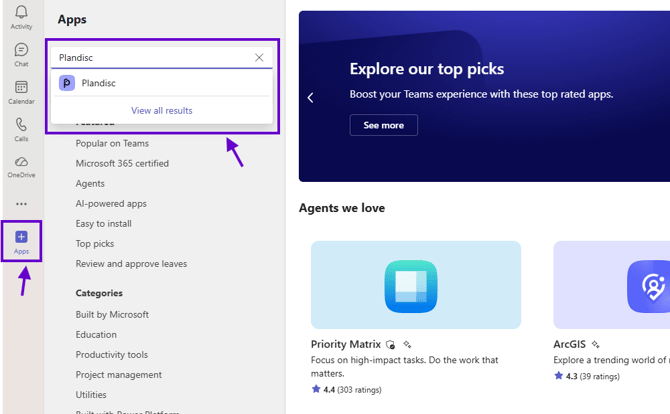
- Open Microsoft Teams, go to “Apps”.
- Type “Plandisc” in the search bar and follow the installation instructions.
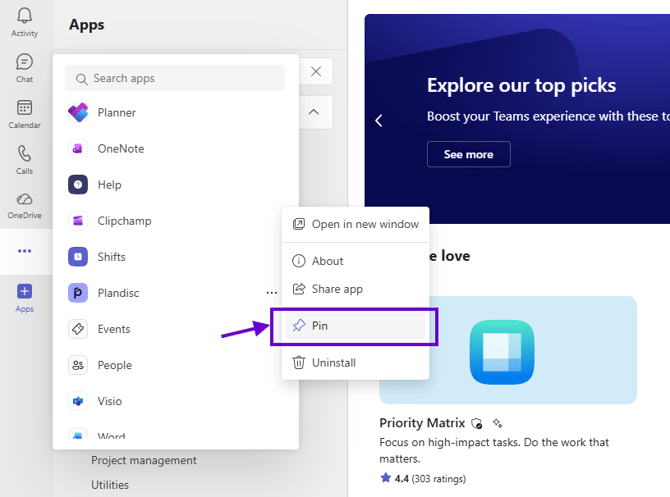
- When Plandisc is installed the app will be visible in the menu on the left. If you right-click it you will be able to pin it to the menu and make it even easier to access.
How to display your Plandisc in Teams
Use the Plandisc Teams app to display your Plandisc in a channel tab. Follow the steps below:
-
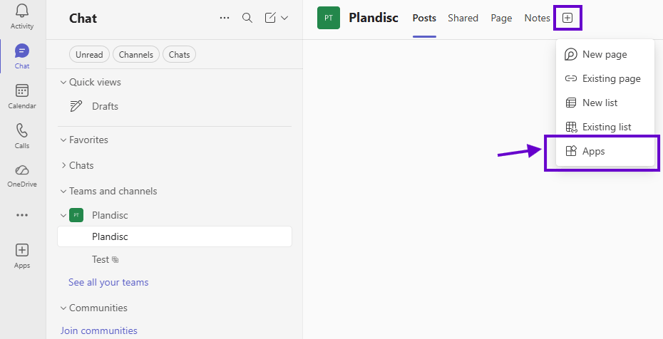
Go to the team channel where you want to display your Plandisc and click the + (Add a tab) button.
-
Search for Plandisc and click on it.
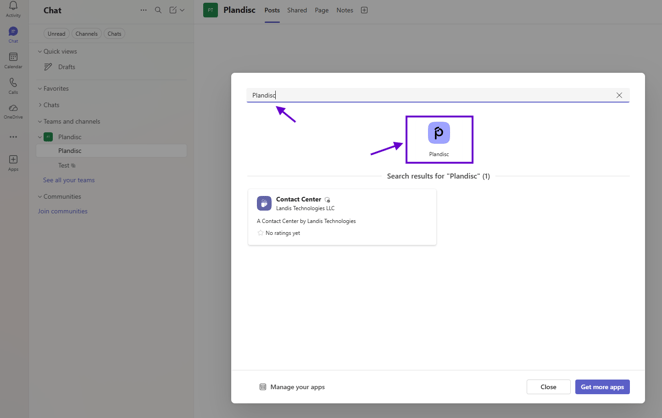
-
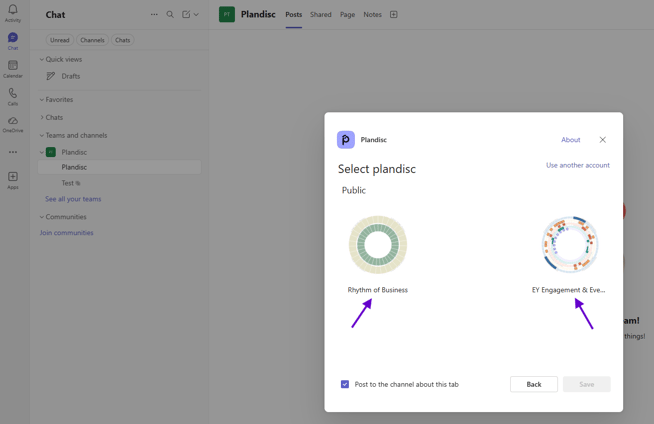
Select the Plandisc you want to display in the channel. Note: the Plandisc must be published (set to publicly available) before it can appear in Teams. Learn how to publish a Plandisc here.