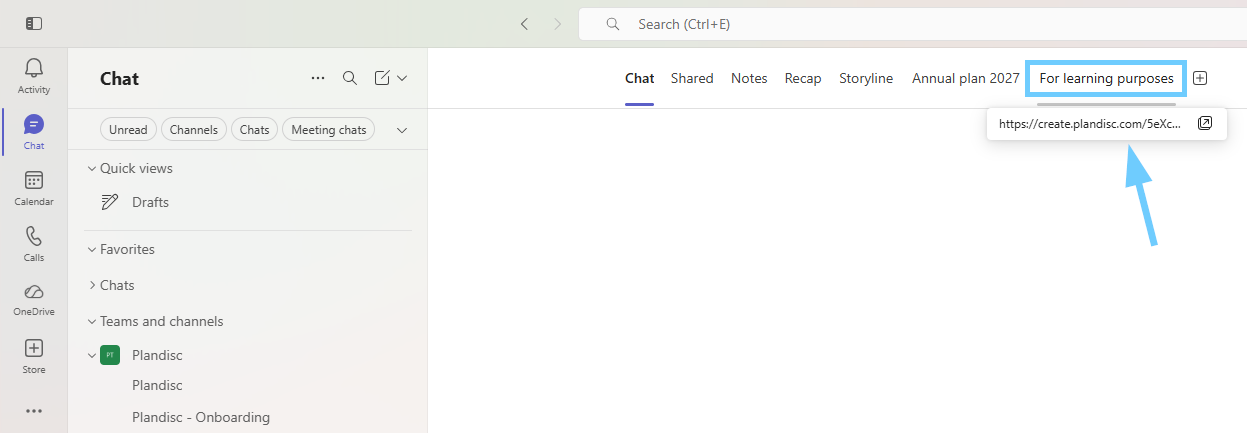
Your team already spends the day in Teams, so why not keep the plan there too? You can open and edit your plandiscs right inside Microsoft Teams. You can also show a plandisc as a tab in a channel, so everyone sees the same plan without leaving Teams.
The tab shows a live view. When you update the plandisc, the tab updates too, so everyone always sees the latest version.
This article covers three things:
- Install the Plandisc app in Teams
- Show a plandisc in a channel with the Plandisc app
- Show a plandisc in a channel or chat with a website tab (no app needed)
Before you start
To show a plandisc in a tab, you first need to publish it. Learn how to publish a disc online.
Tip: A published plandisc can be seen by anyone who has the link (unless password-protected). Only publish plans that are fine to share.
Install the Plandisc app in Teams
With the app, you can open and edit your plandiscs inside Teams.
- Open Microsoft Teams.
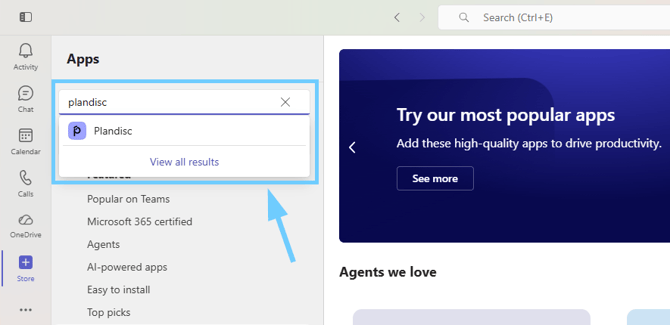
- In the left menu, click Store.
- Search for Plandisc.
- Click the Plandisc app and follow the steps to install it.
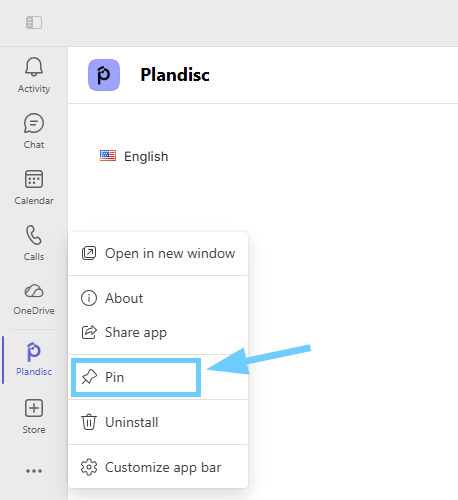
After you install it, Plandisc shows up in the left menu in Teams. To keep it there, right-click the Plandisc icon and choose Pin.
Show a plandisc in a channel with the Plandisc app
Use this method if the Plandisc app is installed in your Teams.
- Go to the Teams channel where you want to show the plandisc.
- At the top, click + (Add a tab).
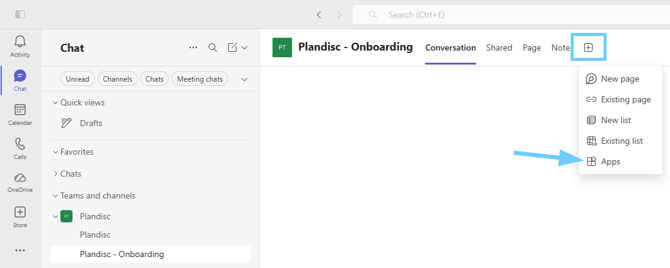
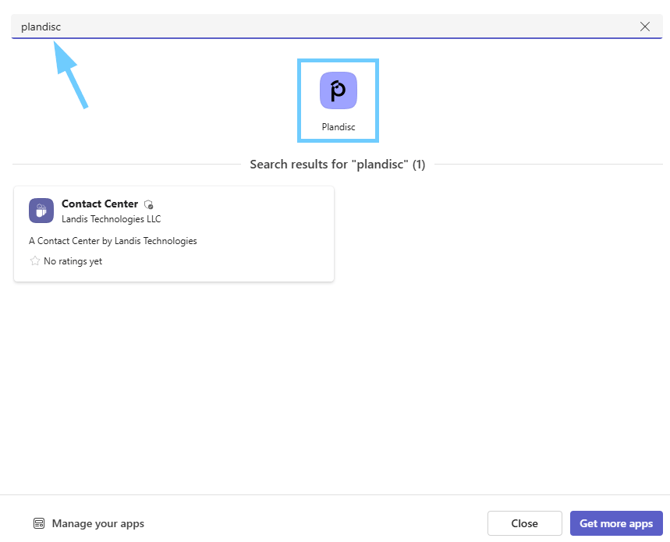
- Search for Plandisc and select it. The first time, you’ll need to log in.
- Choose the plandisc you want to show. Note: the Plandisc must be published (set to publicly available) before it can appear in Teams.
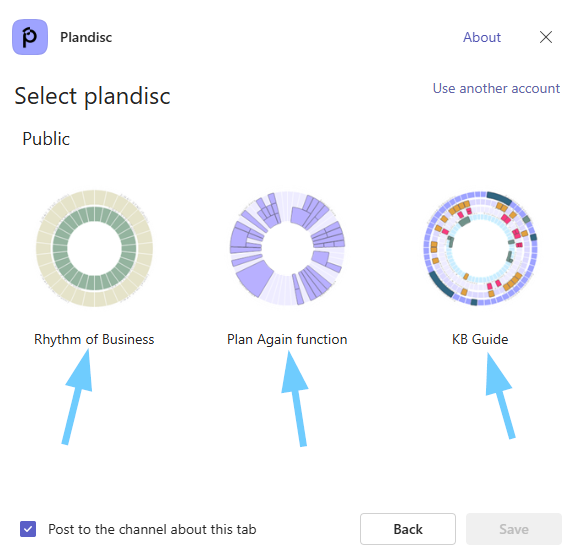
The plandisc now appears as a tab in the channel. To show another plandisc, repeat these steps.
Show a plandisc with a website tab (no app needed)
Use this method if the Plandisc app isn’t installed in your Teams, or if you want to show the plandisc in a chat.
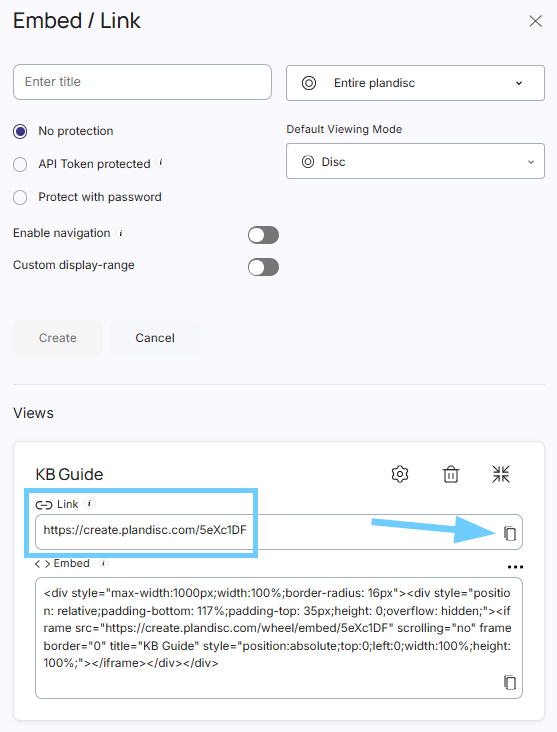
- Copy the link to your published plandisc (see an example screenshot below).
- In Microsoft Teams, open the channel or chat where you want to show the plandisc.
- At the top, click + (Add a tab).
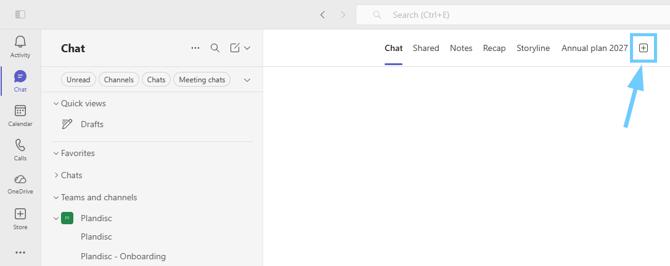
- Search for Website, and select.
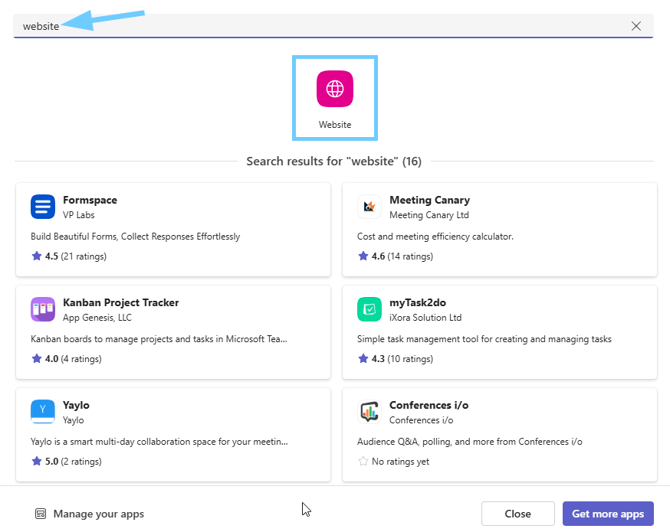
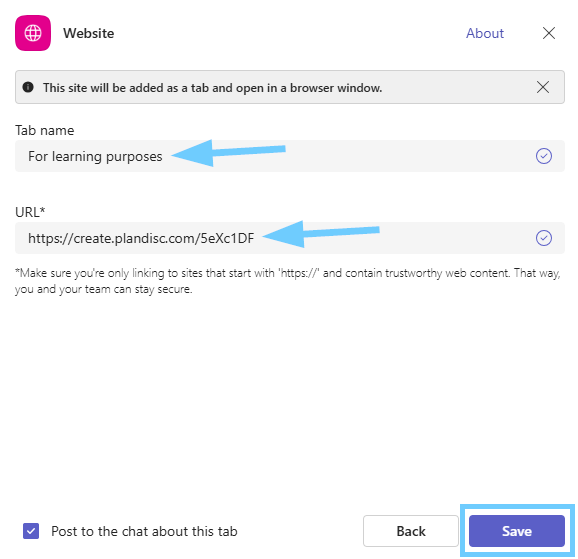
- In Tab name, type a name for your plandisc. For example, “Annual plan 2027.”
- In URL, paste the link to your published plandisc.
- Click Save.
That’s it. You and your colleagues can now see the plandisc in Teams.