
Add a label to an activity
-
Open the activity you want to label.
-
Click Add labels.
-
Pick an existing label, or create a new one by choosing a color and a name.
-
Click the label to add it. A checkmark shows it's applied.
-
To remove a label, click it again to clear the checkmark.
Your admin may have set up labels for your organization. These are marked with an Enterprise icon and can't be edited or removed.
Show or hide activities by label
-
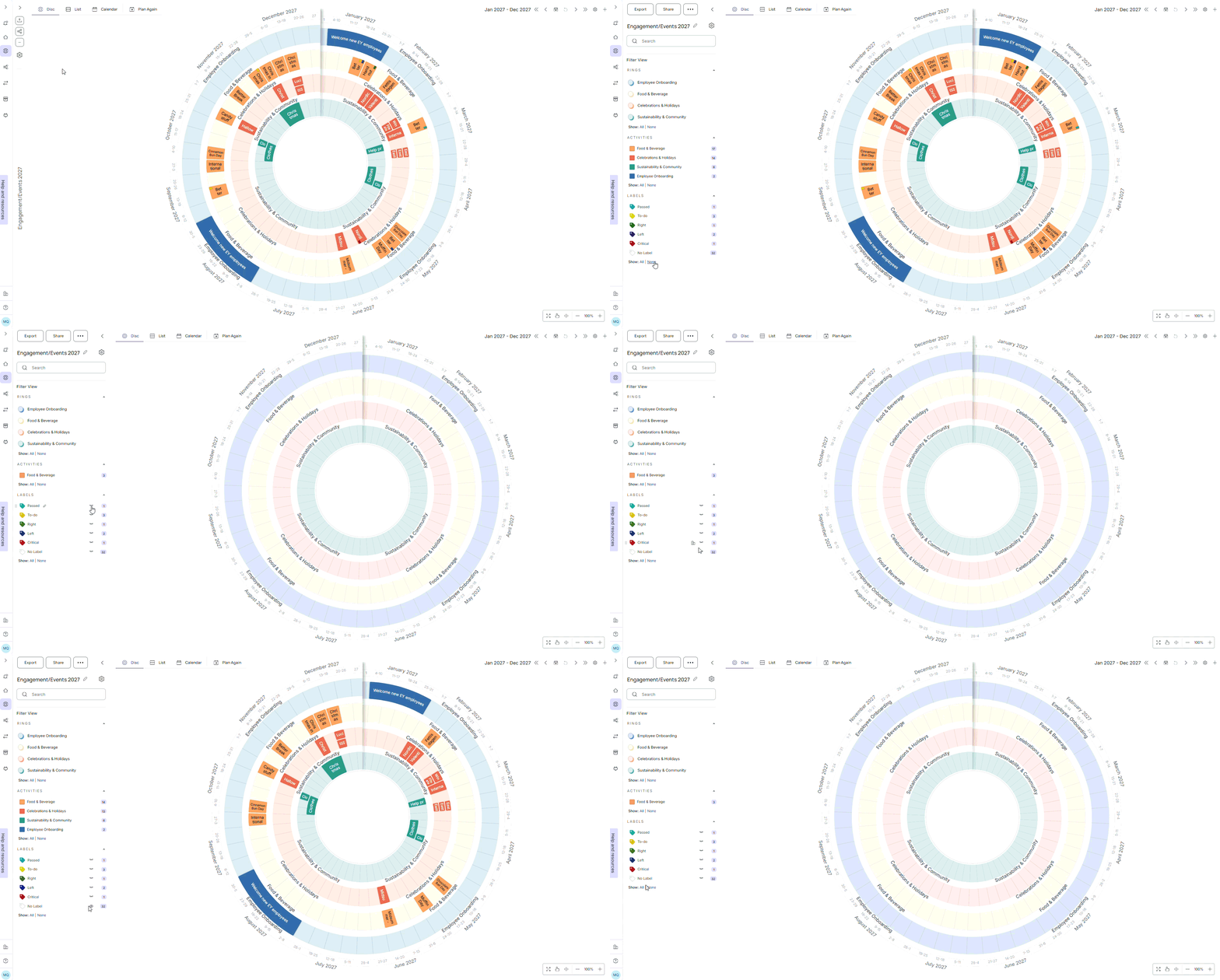
Open the menu on the left and go to Labels.
-
Click the eye icon next to a label to hide all activities with that label.
-
Click it again to bring those activities back.
What's next
Create, edit and repeat activities in the circular calendar