
Create and edit activities in an activity disc
Once you've set up the rings in your activity disc, you're ready to add activities. This guide shows you how to create one and edit every part of it: title, color, timing, description, labels, and attachments.
Create an activity
- Open your activity disc from the Dashboard or My Plandiscs.
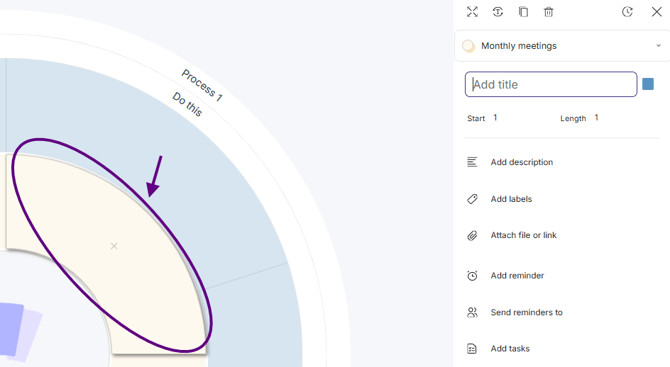
- Click the cell in the activity ring where you want the activity to start.
This opens the edit window, where you can adjust everything below.
Title and layout
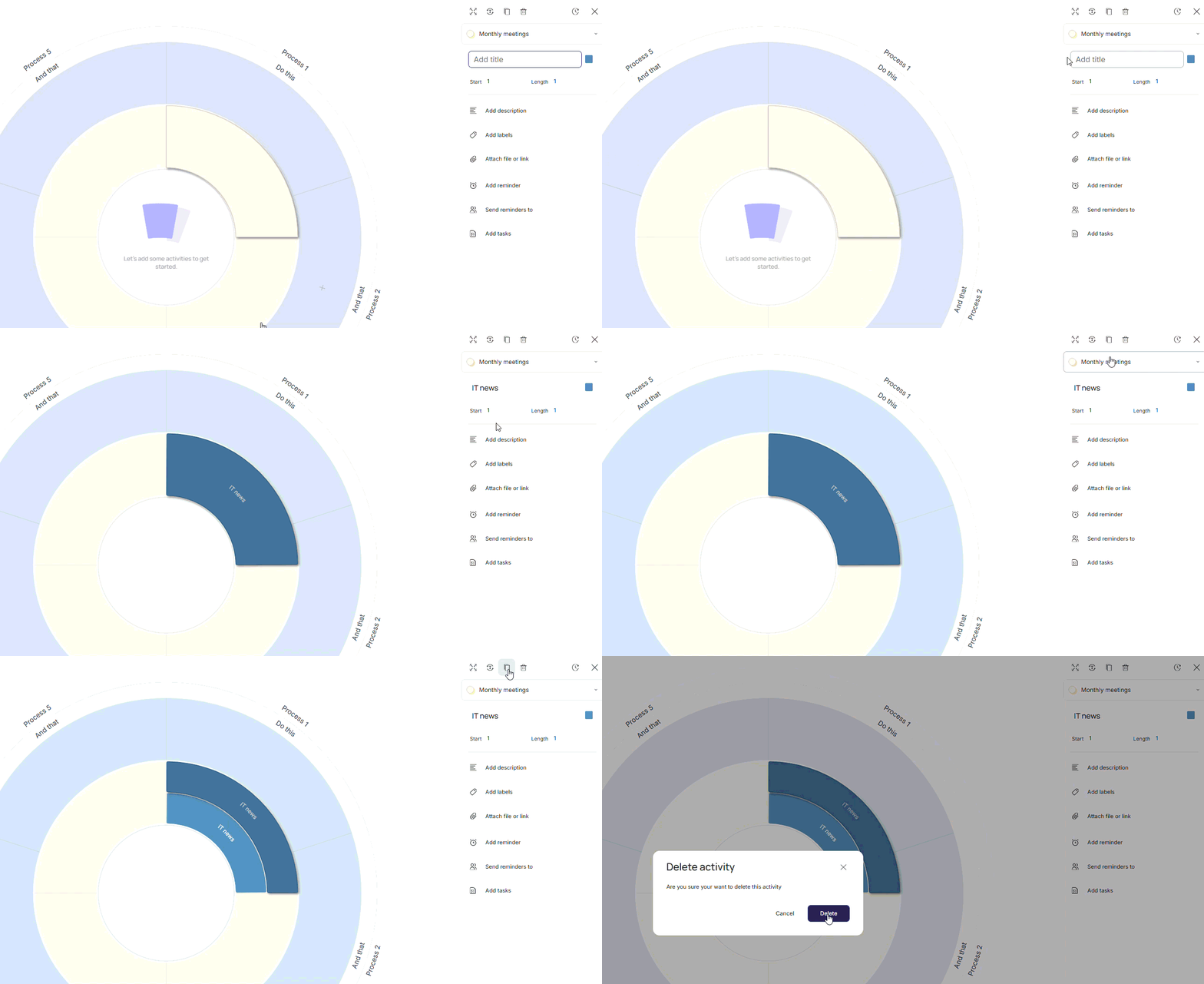
- Title: type a title for the activity.
- Expand: expands the sidebar for a better view.
- Horizontal or vertical: use the icon on the left to switch how the title is shown.
- Duplicate: use the middle icon to duplicate the activity.
- Delete: use the icon on the right to delete the activity.
Color (activity group)
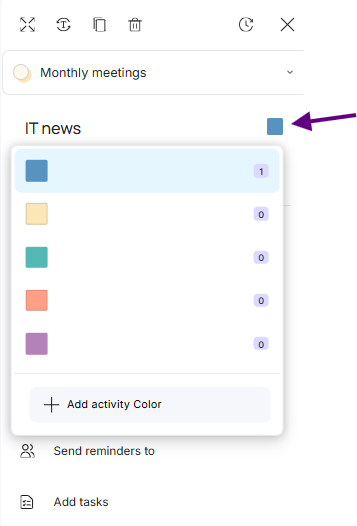
Choose a color for the activity. Colors work as activity groups: they let you categorize activities and filter your disc by type later.
Start and length
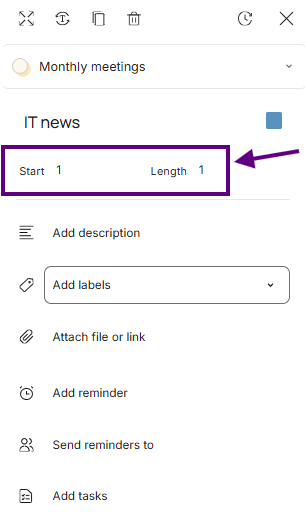
- Start: sets which cell the activity begins in. For example, if your ring is set to months, choosing cell 3 starts the activity in March.
- Length: sets how many cells the activity covers.
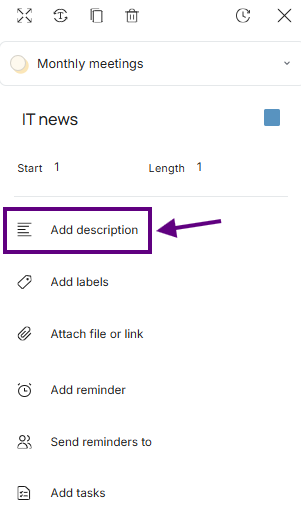
Description
Add a description so people have the details they need. You can format the text with bold, italic, numbered lists, bulleted lists, and links.
Labels
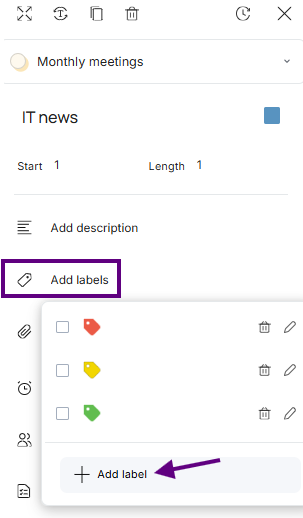
Labels add another layer of detail, like a status or the person or team responsible.
- Click Add labels.
- Click Edit labels.
- Name each color you want to use as a label.
- Add a new label if you need one.
- Click OK.
Files, reminders, and tasks
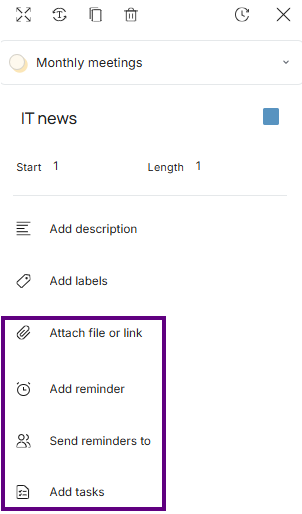
- Files and links: attach a file or a link so people can find what they need in one place.
- Reminders: add a reminder and send it by email to other users.
- Tasks: add and assign tasks to track progress.
That's it — your activity is ready. Add a few more, then try filtering your disc by color or label to see the full picture.
Want to know more?
What can a Plandisc be used for?