
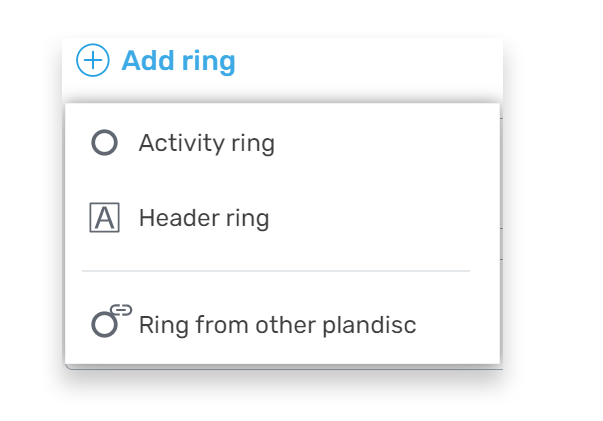
In an activity disc you can use three types of rings:
- Title ring: To create overview
- Activity ring: For activities
- Ring from other plandisc: to show shared rings from your own and others’ discs
Common to all rings
You can do this to all the rings in an activity disc
- Insert
- Change color
- Change height
- Copy
- Move
- Delete
Insert and adjust title ring
Insert a title ring
- Tap “Add ring” in the edit menu
- Tap “Header ring”
Choose the ring and adjust:
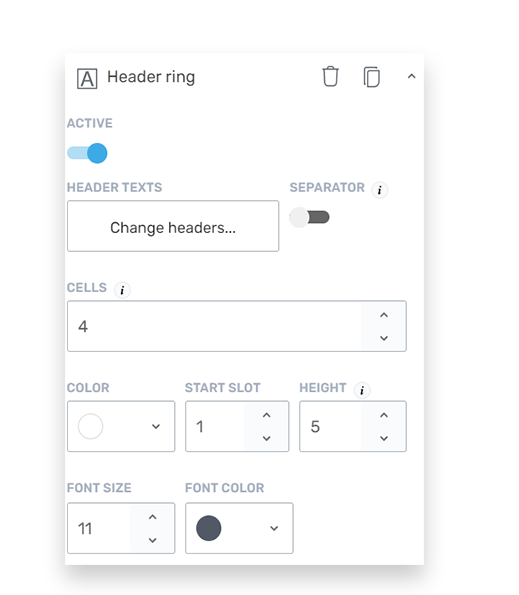
- Active: Choose if the ring should be visible in the Disc (you can still edit the ring, even though it is not active)
- Separator: Decide whether or not to have vertical lines between the texts in the ring
- Cells: Choose how many cells you want in the ring
- Color: Choose a color from the chosen color palette or define your own color
- Start slot: Choose which box to be first
- Height: Choose how tall the ring has to be (pixels)
- Font: Choose the color of the text and its size in pixels
Insert and adjust activity ring
Insert an activity ring
- Tap “Add ring”
- Tap “Activity ring”
Choose the ring and adjust:
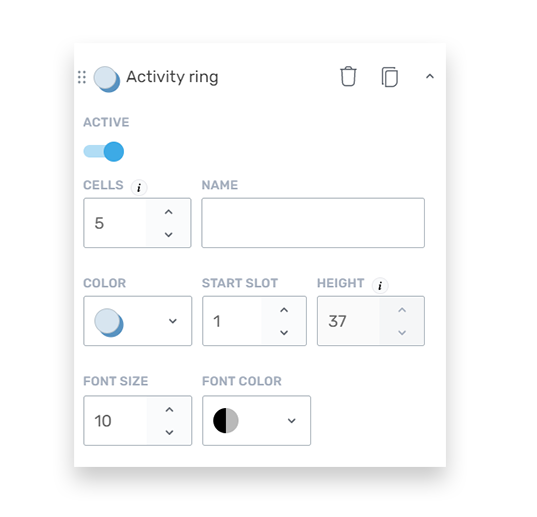
- Active: Choose if the ring is shown in the disc
- Cells: Choose how many cells you want in the ring
- Name: Name the ring. It is not shown in the ring
- Color: Choose a color from the chosen color palette or define your own color
- Start slot: Choose which box to be first
- Height: Choose the height of the ring (pixels)
- Font: Choose the color of the text and its size in pixels
Insert ring from another Plandisc
Insert a ring from another plandisc
- Tap “Add ring”
- Tap “Ring from another plandisc”
- A list of rings you can insert will appear or you can enter ring info or a code. Choose the new ring and if you want to insert a copied or a synchronized version of it
Adjust
- Color: Choose a color from the chosen color palette or define your own color
- Height: Choose height in percentage of the rings’ height all together
- Active: Choose if the ring should be visible in the Disc (you can still edit the ring, even though it is not active)
Next step
Create and edit activities in an activity disc