
Every ring in your plandisc has its own email address. It works just like a meeting room or a person. When you invite the ring’s email address to a calendar activity, the activity shows up in that ring.
- Changes you make in your calendar are updated in your plandisc.
- It also works for recurring activities.
- The sync only goes one way: from your calendar to Plandisc.
Before you start
- To sync activities, you need a Plandisc license.
- To set up a sync on a plandisc someone shared with you, the owner must make you an admin. See “Sync with a shared plandisc” below.
Set up the sync
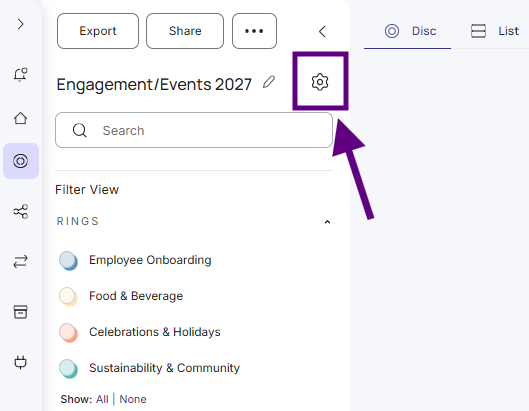
- Open your plandisc setup and find the ring you want to sync with.
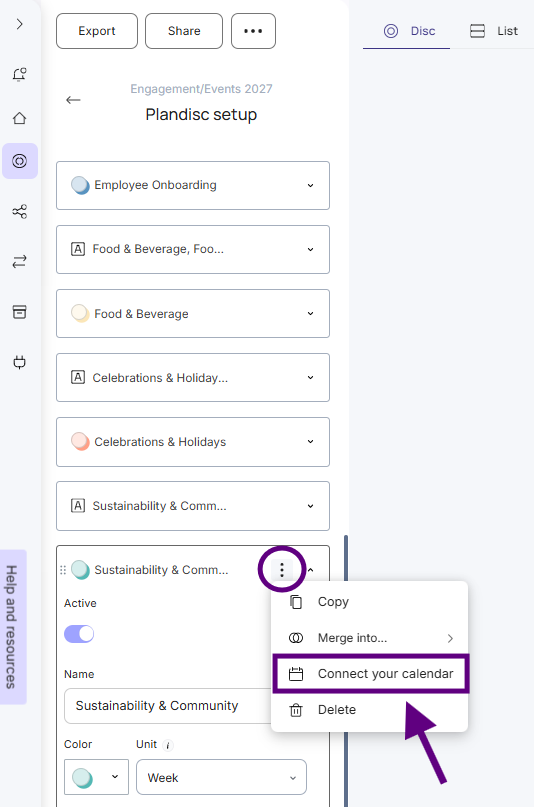
- Hover over the ring, click the three dots, and click Connect to your calendar.
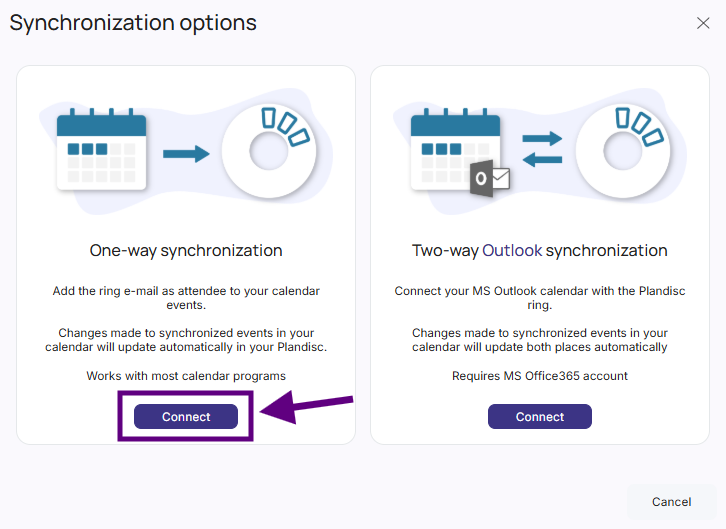
- Choose One-way synchronization and click Connect.
- Choose which details from your calendar events you want to sync to the ring.
- Type the domains that invites can come from, for example yourcompany.com, and click Add. Only people with an email address on these domains and a Plandisc license can sync activities to this ring.
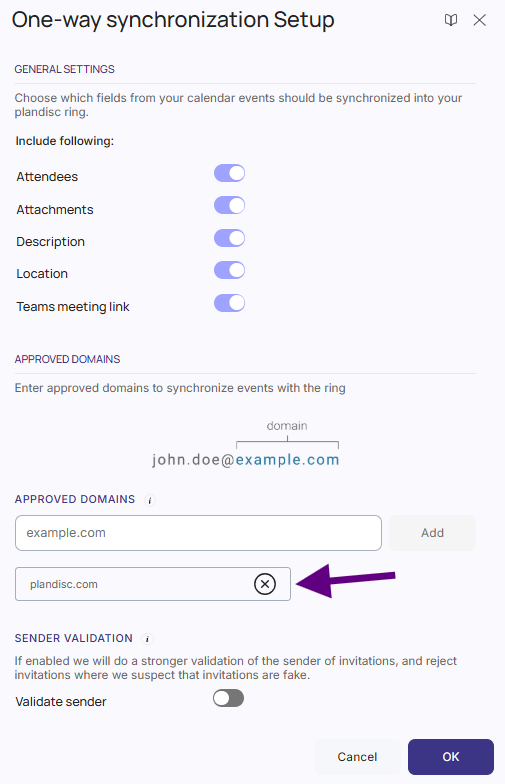
- Click Save.
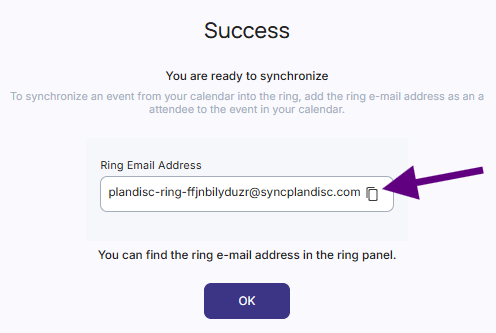
- Copy the ring’s email address.
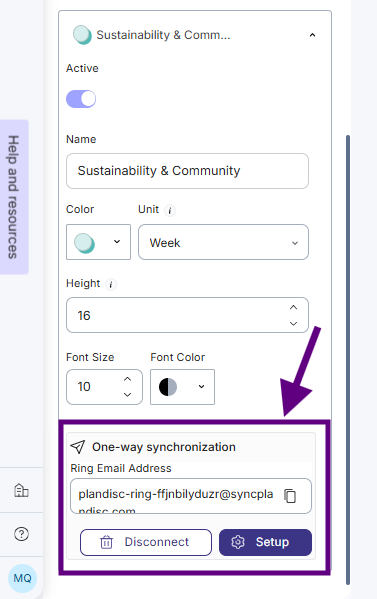
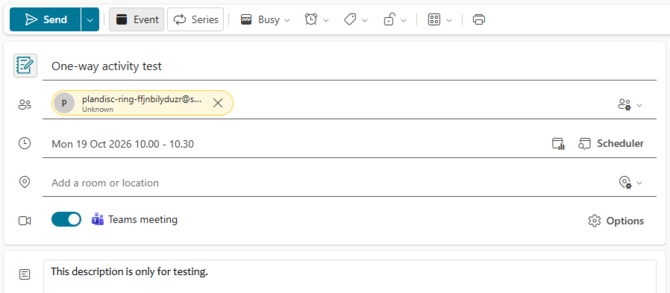
- In your calendar, open the activity and add the ring’s email address as an attendee. The activity now shows up in your plandisc.
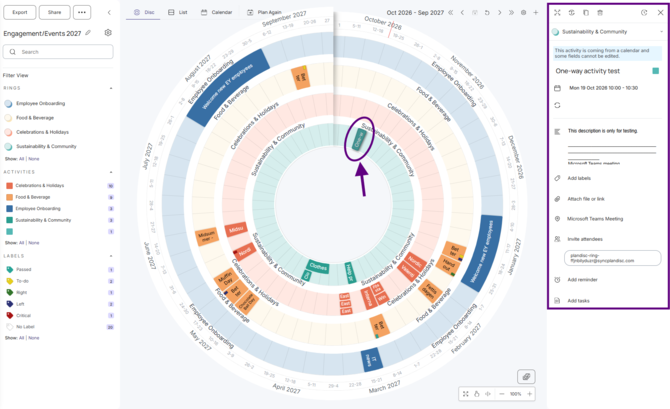
That’s it. From now on, you can invite the ring to any activity, right from your calendar.
Tip: Save the ring as a contact
You don’t need to copy the email address from Plandisc every time. Save it as a contact in your calendar instead, with a clear name like “Plandisc – Board meetings”. Then you can find the right ring quickly when you send invites.
Tip: Add an activity group and labels from your calendar
You can choose the activity group (color) and labels right from your calendar. Write this in the description of the calendar activity:
-
#Color:name of activity group# -
#Label:name of label#
Example:#Color:Meetings##Label:Deadlines#
The activity group and labels must already exist in your plandisc. Write the names exactly as they appear there.
Sync with a shared plandisc
You can also set up a one-way sync with a plandisc someone shared with you. First, the owner must share it with you and make you an admin. As an admin, you can see the syncs that are already set up, and you can add your own. Then follow the steps above.
What's more
Set up two-way sync between a ring and your Outlook calendar