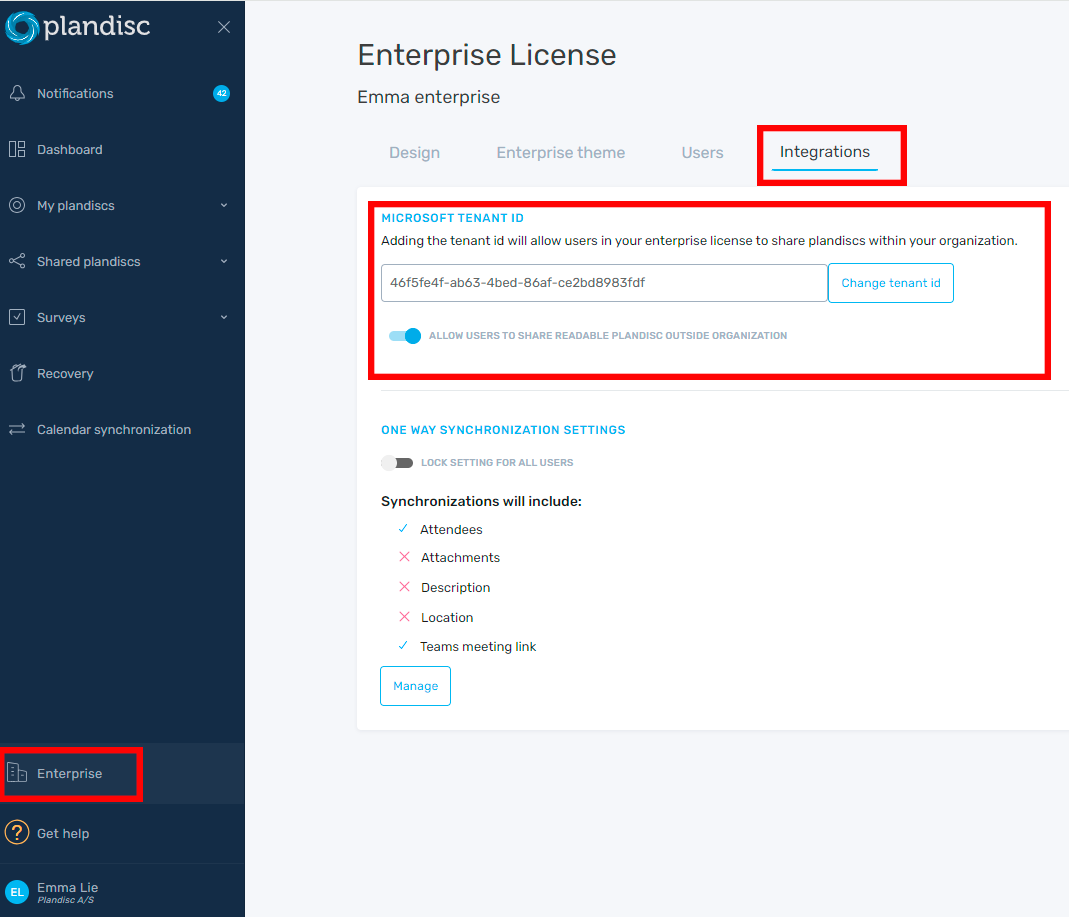
In Plandisc, there are several different ways to protect your account and your Plandisc. For example, you can log in with Microsoft or SAML, or you can use multi-factor authentication. If you use Microsoft 365, the admin for your enterprise agreement can add your Tenant ID to the agreement and thus prevent annual wheels from being displayed outside the organization.
Single Sign-On (SSO)
- To log in with SSO, you must first be registered as a user in Plandisc. You can use SSO as a free user, business user, or enterprise user.
- To log in with SSO, click on "login" on our website, then choose "Continue with Microsoft". You can also choose "Other options" if you want to log in with SAML.
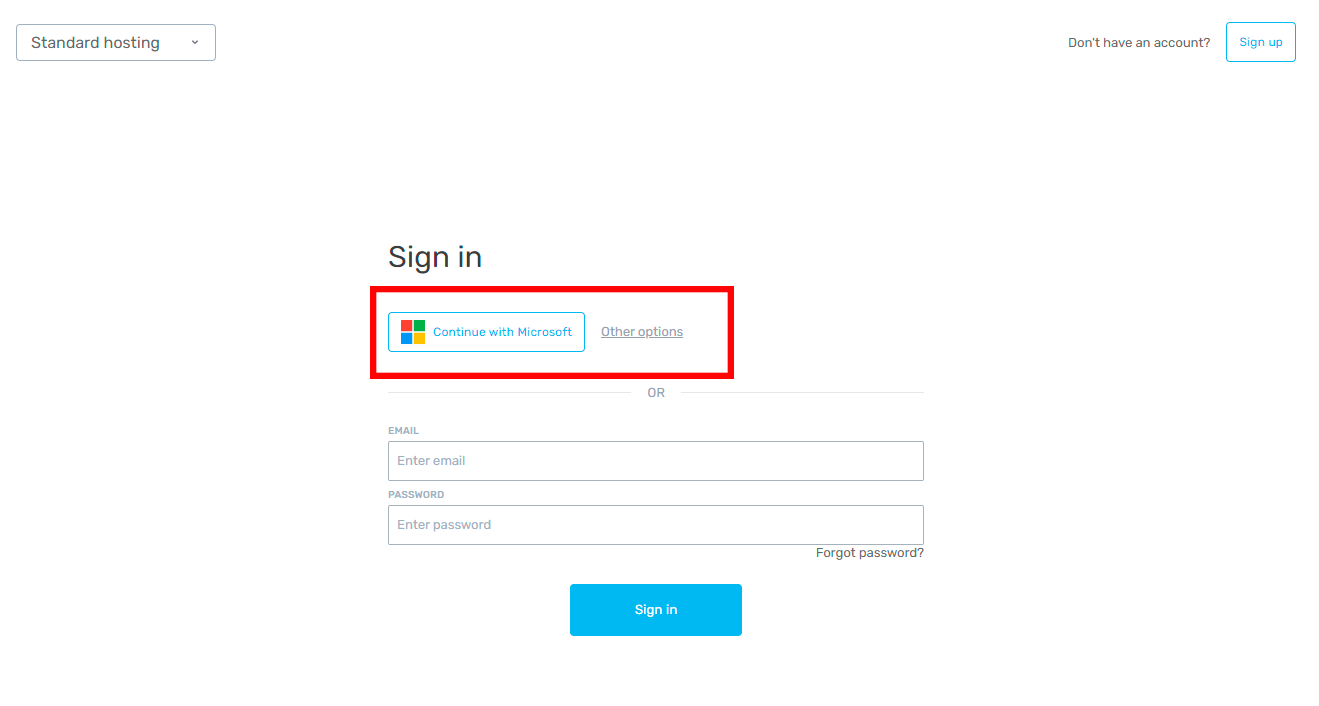
- Then log in with your Microsoft or SAML account.
Multi-factor authentication (MFA)
- If you do not have a Microsoft or SAML account, or do not wish to use it to log in to Plandisc, you can instead use multi-factor authentication. MFA is a standard login method for all users in the program
- Go to our login page, enter your username and password
- Authenticate your login with an authenticator app
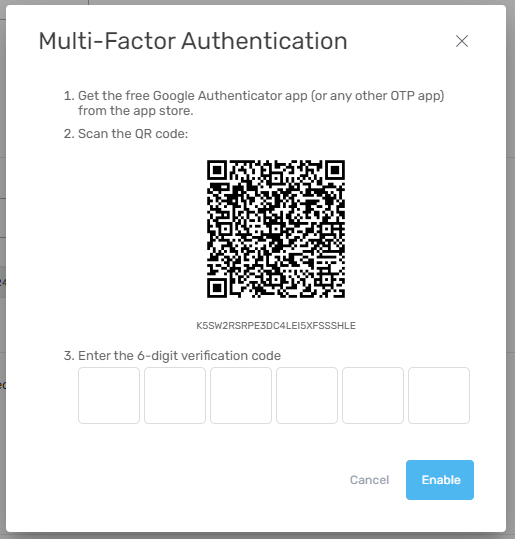
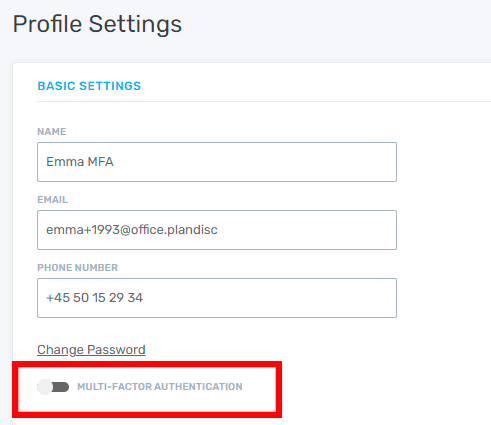
- You have the option to enable or disable MFA on your profile
- Click on your name and click on profile
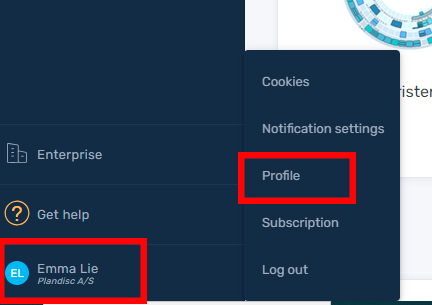
-
- Check the box to enable MFA, or uncheck it to disable MFA.
Tenant ID
- Ask your IT department to locate your Microsoft 365 Tenant ID. Note: You must be the admin of your enterprise agreement in Plandisc to add the Tenant ID.
- Navigate to the Enterprise section in Plandisc.
- Click on "Integrations".
- Add the Tenant ID and choose whether users on your agreement should be able to share Plandisc with read access outside the organization. If you choose to protect against this sharing, those who need to see a shared annual wheel must log in with their Microsoft account to access it.