
As an admin, you can decide how Plandisc looks and works for everyone in your Enterprise. You can set shared ring colors, activity groups, and labels. You can also add your logo, a default color palette, and a template for new users.
This keeps plans consistent across teams. Users get a clear structure to start from, so their plandiscs match your layout.
You can find these settings in the bottom left corner, Click Enterprise:
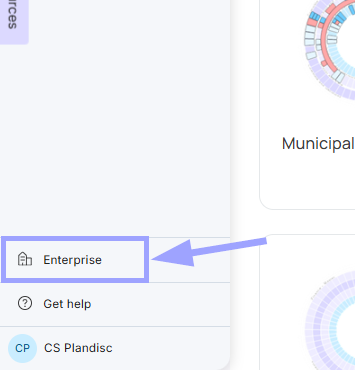
Enterprise theme
The Enterprise theme is a shared set of ring colors, activity groups, and labels:
- Ring colors: The background colors of the rings. Faded colors often work best. You can also use them to show the difference between departments.
- Activity groups: How activities are sorted. This is the most important part of the theme. Choose groups that make sense for everyone, whether you want detailed sorting or a simple overview.
- Labels: Extra information about an activity, like its status or who is responsible. Set the general labels here. Users can still add their own.
To set up the theme:
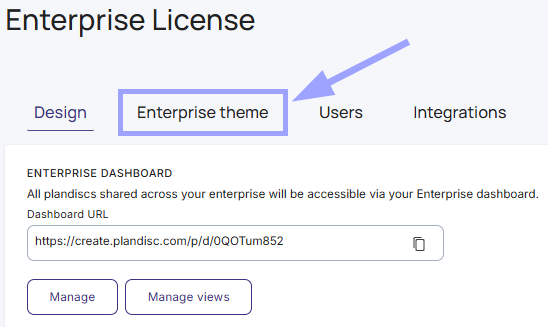
- Click the Enterprise theme tab.
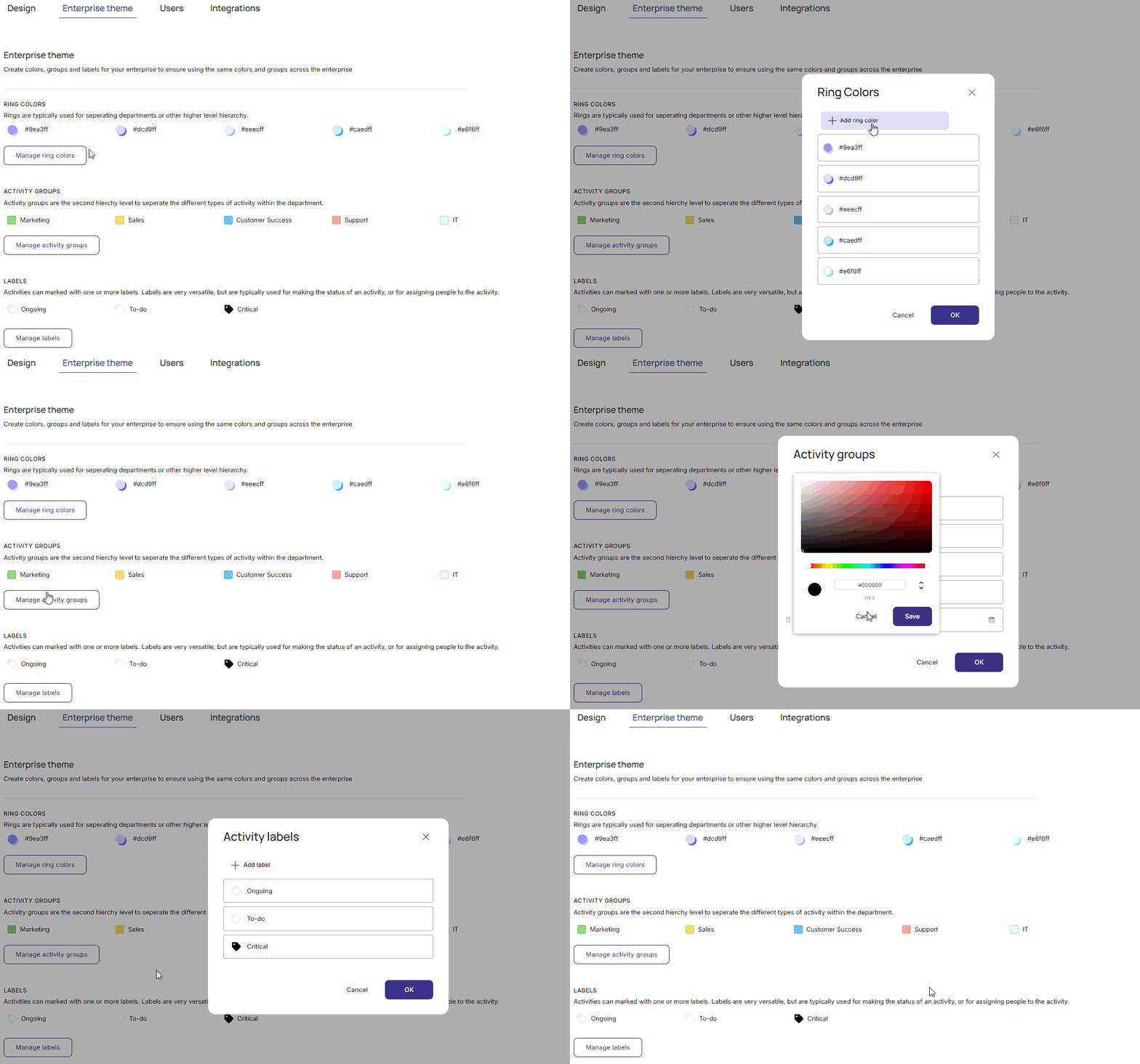
- Click Manage ring colors, Manage activity groups, and/or Manage labels to create and edit ring colors, activity groups, and labels.
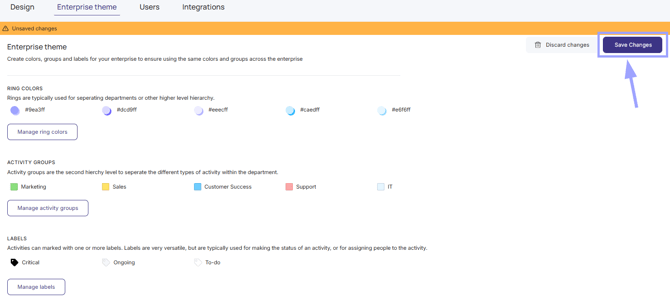
- Click Save changes when you’re done.
Your ring colors, activity groups, and labels are now available in all plandiscs in your Enterprise, including existing ones. They’re marked with the Enterprise icon.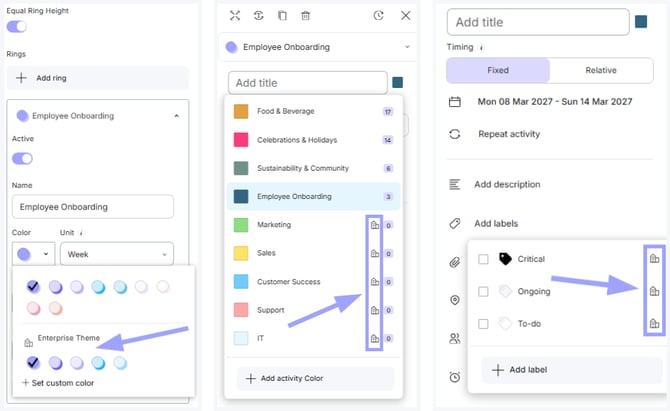
Good to know
- The theme doesn’t change anything in a plandisc on its own. Users choose when to use the Enterprise ring colors, activity groups, and labels.
- Users can’t edit items with the Enterprise icon. That keeps the shared structure the same for everyone.
- Users can still add their own activity groups and labels. These only show in the plandisc they’re working in.
Branding and other Enterprise settings
[Screenshot: Enterprise dashboard, Custom color palette, Enterprise logo, and Primary Enterprise template]
Enterprise dashboard
The Enterprise dashboard gathers all plandiscs shared across your Enterprise in one place. Copy the Dashboard URL to share it.
To set up the dashboard:
- Under Enterprise dashboard, click Manage.
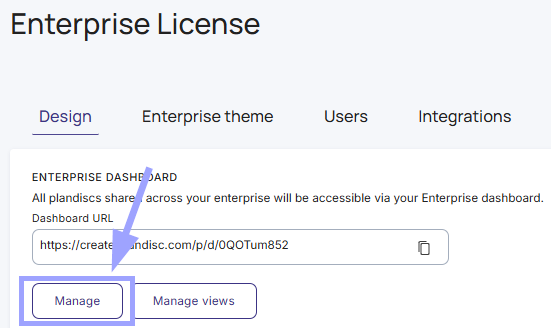
- Turn on Enabled to make the dashboard available.
- Enter a Dashboard Name.
- Add a Description if you want to. This is optional.
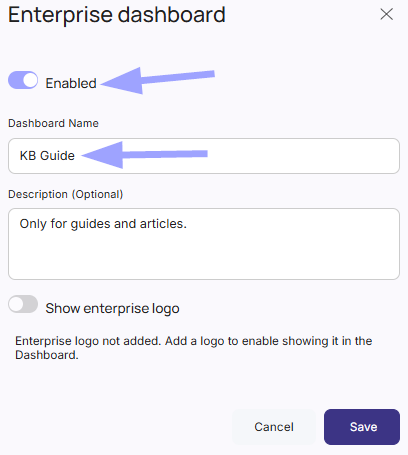
- Turn on Show enterprise logo to show your logo on the dashboard. You need to add an Enterprise logo first (see below).
- Click Save.
To choose what the dashboard shows:
- Under Enterprise dashboard, click Manage views.
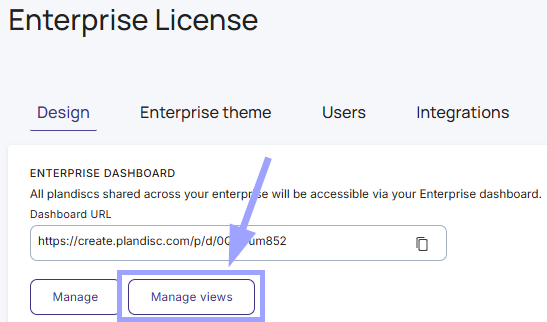
- Click the public views you want on the dashboard. You can pick as many as you like. Selected views get a check mark.
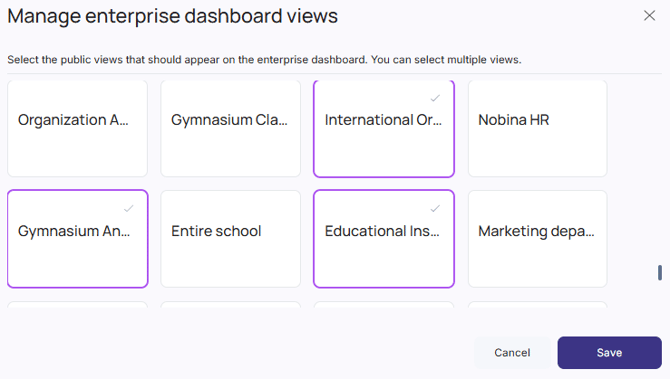
- Click Save.
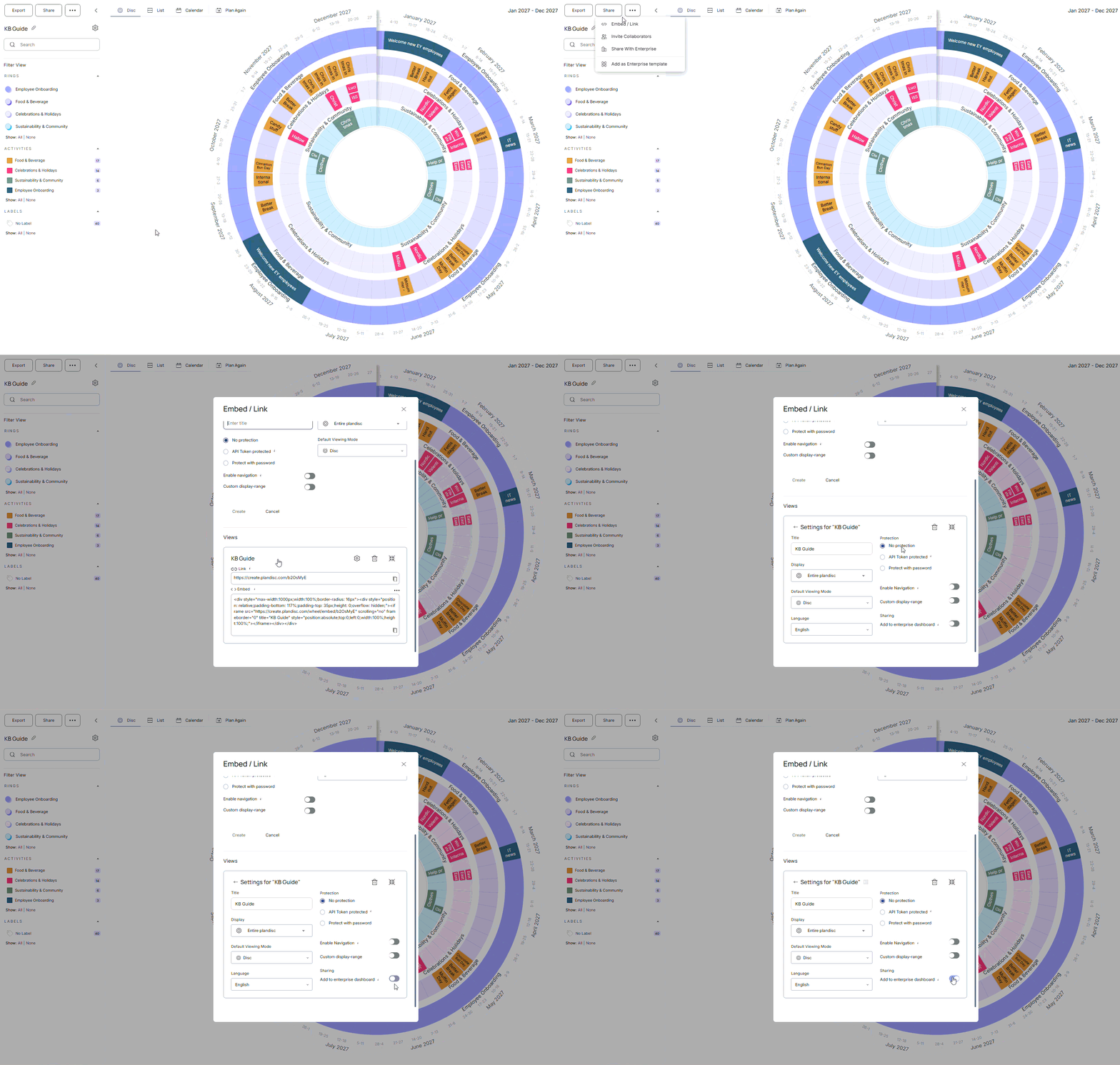
Can’t find a view in the list? Check that Add to enterprise dashboard is turned on for that view.
- Open the plandisc. Click Share, then Embed / Link.
- Click + Public view to create a new view, or open an existing view.
- Under Sharing, turn on Add to enterprise dashboard.
Custom color palette
The custom color palette sets the default colors for every new plandisc your users create. It has five colors.
To create or change the palette:
- Under Custom color palette:
- If you don’t have a palette yet, click Create.
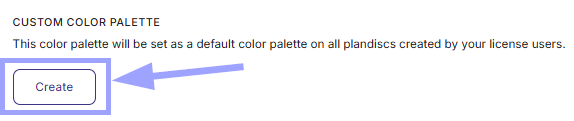
- If you already have one, click the pencil icon.
- If you don’t have a palette yet, click Create.
- Pick a color for each of the five spots, from Color 1 to Color 5.
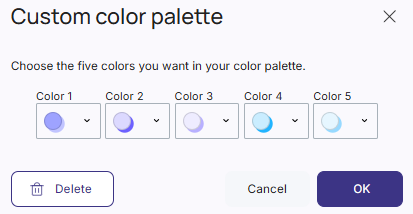
- Click OK.
To remove the palette, click the bin icon. You can also click Delete in the palette menu.
Enterprise logo
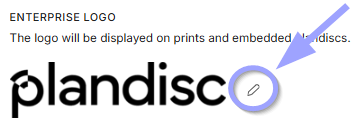
Your logo shows on printed and embedded plandiscs for all users on your Enterprise license. Users who upload their own logo will see theirs instead.
To change the logo, click the pencil icon under Enterprise logo.
Primary Enterprise template
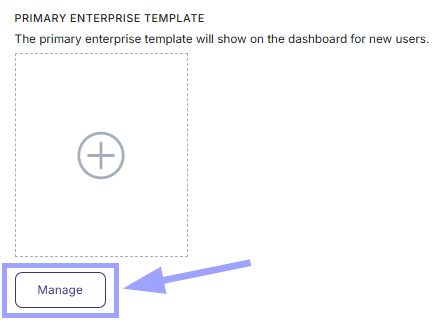
The primary Enterprise template shows on the dashboard for new users. This way, they can start with your structure right away.
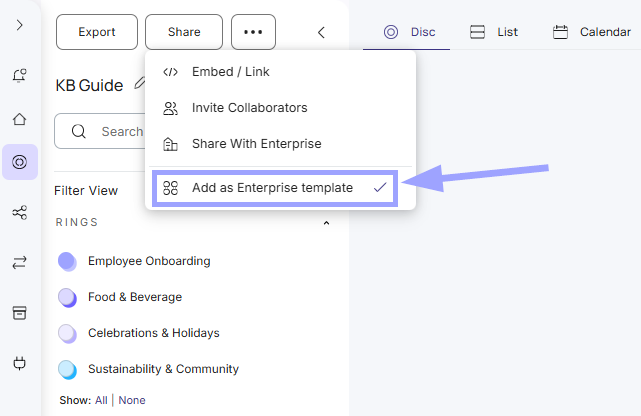
To add a plandisc as an Enterprise template:
- Open the plandisc you want to use as a template.
- Click Share, then Add as Enterprise template.
To choose the primary template:
- Under Primary Enterprise template, click Manage.
- Under Enterprise templates, click the template you want to use (see example below - KB Guide)
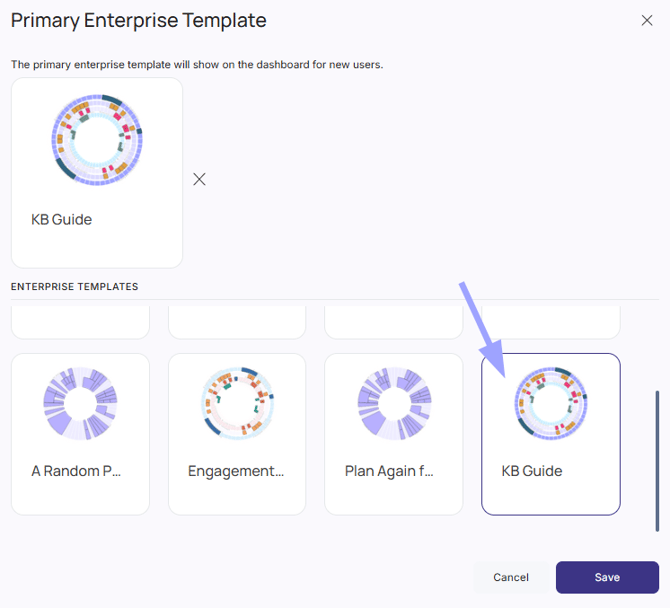
- Click Save.
Did you check this?
Create and manage Enterprise User Groups