
If you no longer want Plandisc to sync with your Outlook calendar, you can remove the connected calendar account from your profile. Plandisc then stops syncing with that account.
- Log in to Plandisc.
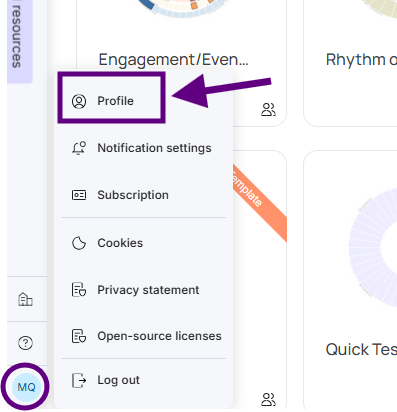
- Click your name in the bottom-left corner.
- Click Profile.
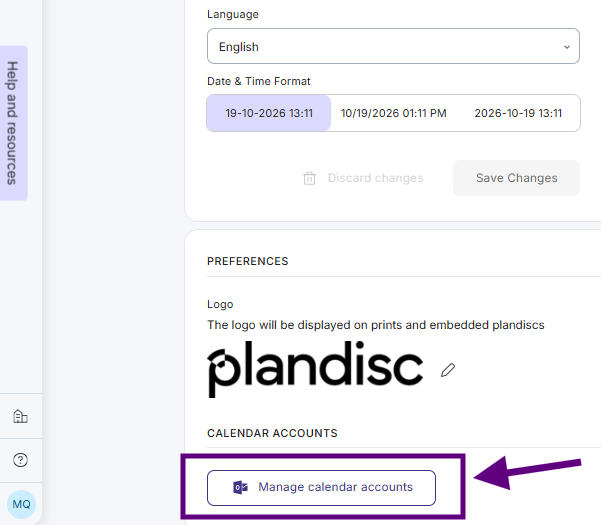
- Scroll to the bottom section and click Manage calendar accounts.
- Click the trash icon to the right of the account you want to remove.
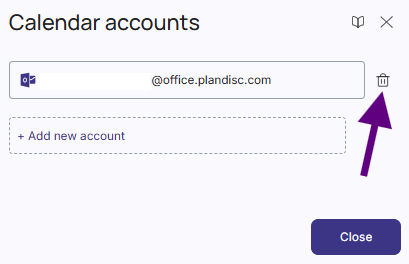
- Click Yes to confirm, then close the dialog.
- Click Save Changes.
The calendar account is now removed from Plandisc.