
Plan together in the same plandisc. You can invite colleagues who have a Plandisc license, and you decide what each person can do: read the plandisc, or read and edit it.
Invite one or a few people
- Open the plandisc. Click Share, then Invite collaborators.

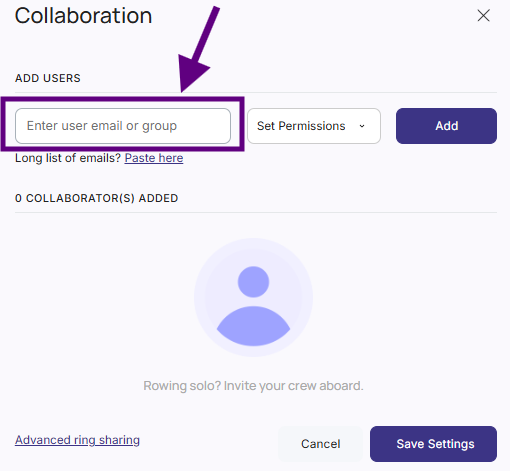
- Enter the email address of the person you want to invite.
- Choose their permissions:
- Read: they can view the plandisc.
- Read and edit: they can view and make changes.
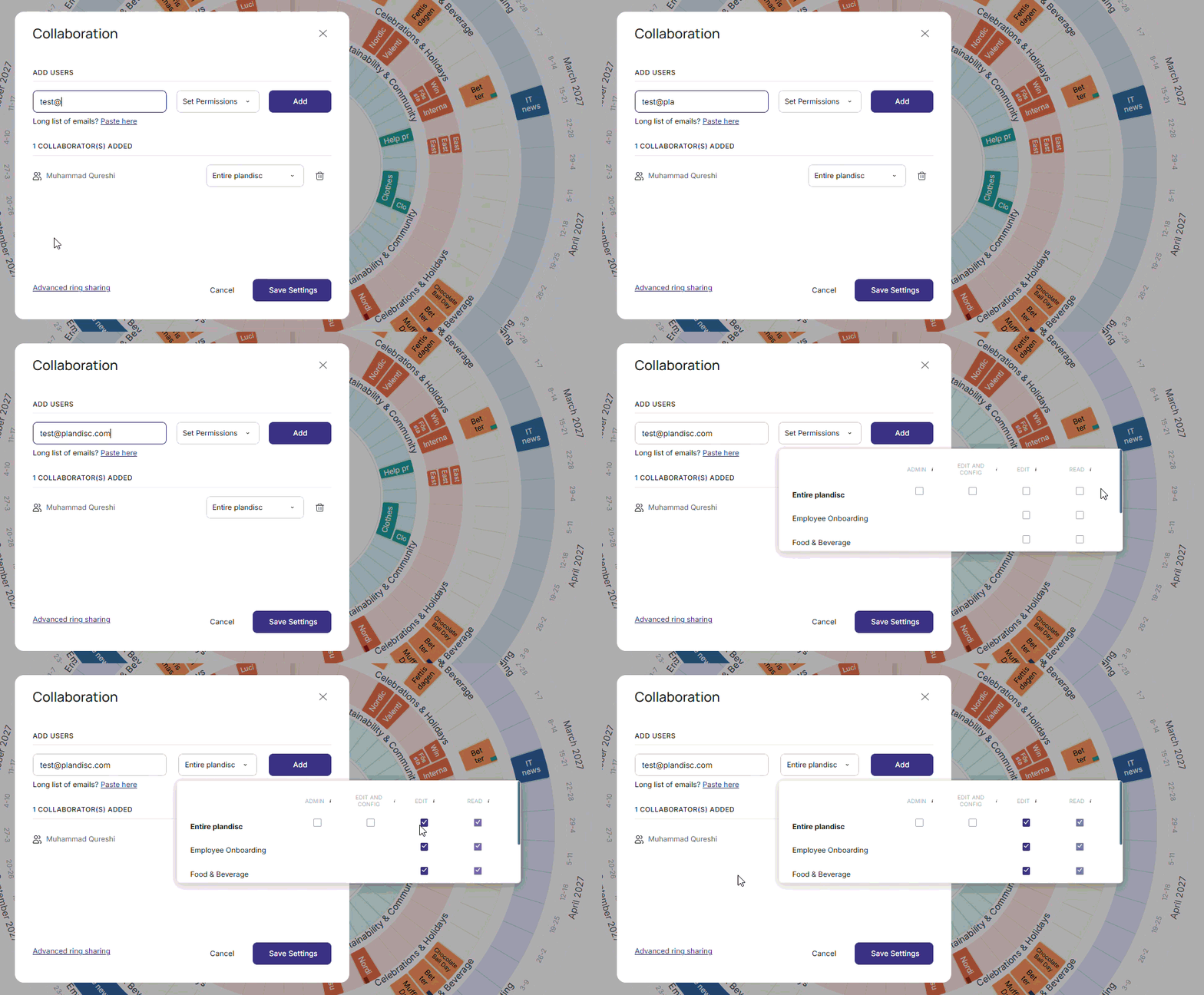
- Read: they can view the plandisc.
- Click Add, and then Save Settings.
That's it. The plandisc now shows up in their sidebar.
Invite a long list of people
Have a lot of people to add? You don't need to enter the emails one by one.
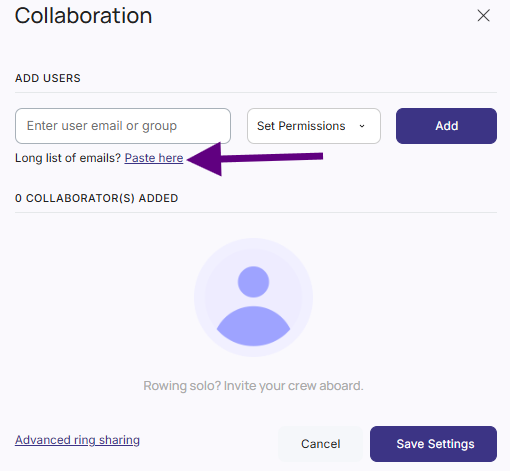
- In the Invite collaborators window, click Long list of emails.
- Paste the email addresses. Separate them with a comma, semicolon, or new line.
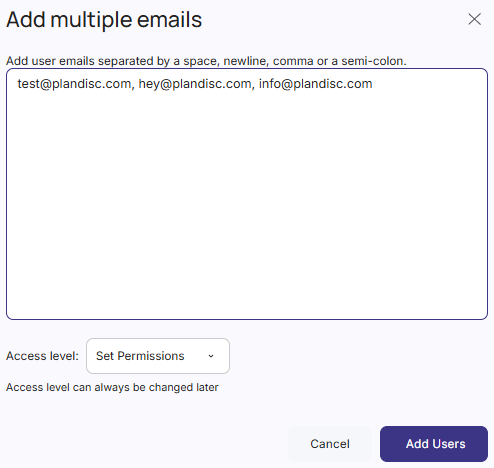
- Choose their permissions.
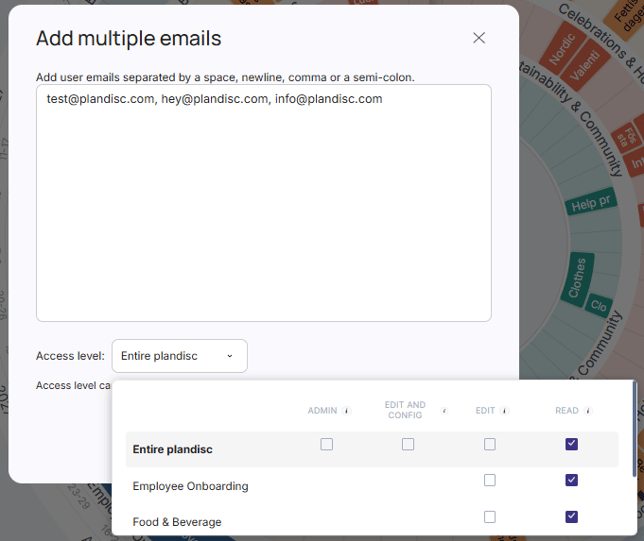
- Click Add Users, and then Save Settings.
Share specific rings with a code
Use a sharing code when you want to give access to certain rings only, or share with a large group.
- Click Share.
- Click Invite collaborators.
- Click Advanced ring sharing.
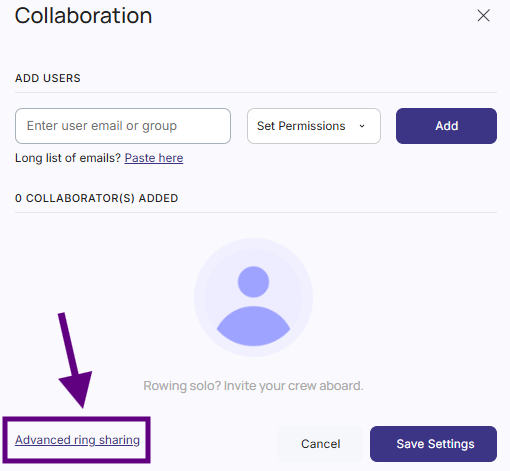
- Turn ON the rings you want to share. Leave the others OFF.
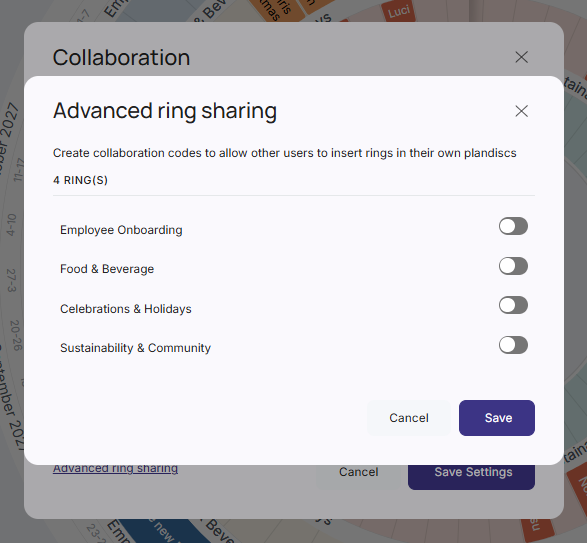
- Choose Can view or Can edit.

- Click Copy to copy the code.
- Click Save.
Your code is ready. Send it to the people you want to share with.