
Groups let you share a plandisc with many people at once, so you don’t have to add them one by one. A group can be a department, a team, or a bigger unit, like a sector in a municipality.
As an Enterprise admin, you create the groups. You can also make colleagues group admins, so they can help keep the groups up to date.
Create a group
- Go to the Enterprise section in the main menu.
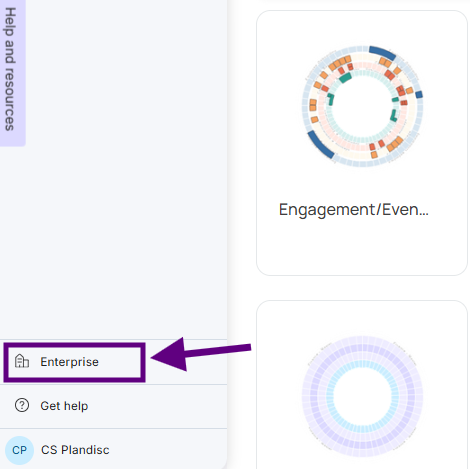
- Select the Users tab.
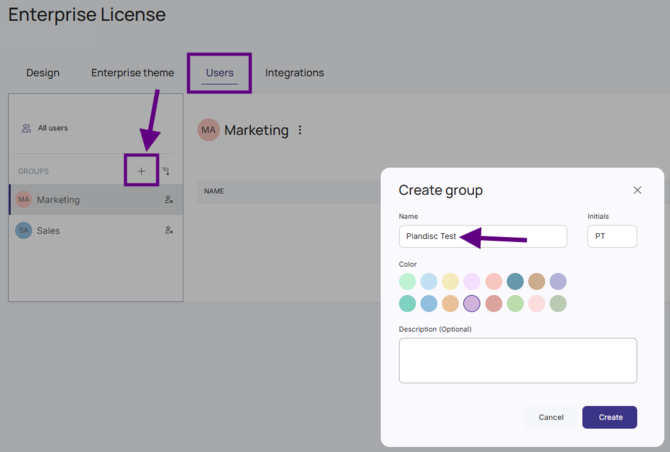
- Click + to create a new group.
- Give the group a name and pick a color. You can also add a description.
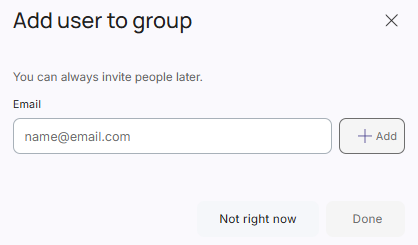
- Add users to the group.
Good to know
- You can only add people who are already users in your Enterprise.
- If you want to share your own plandiscs with this group, add yourself too.
- When you add new users to your Enterprise later, you can add them straight into a group.
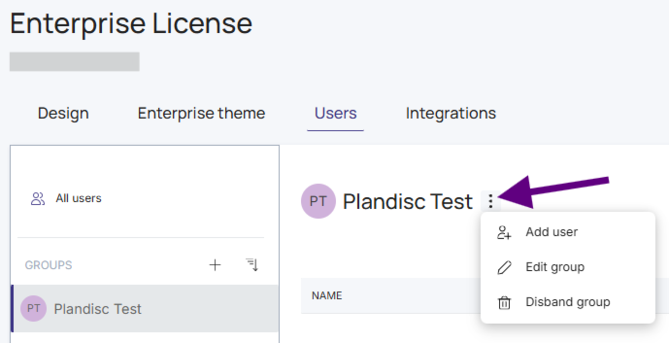
Edit or delete a group
You can change a group at any time. You can:
- Rename it
- Update the description
- Add or remove users
- Delete the group
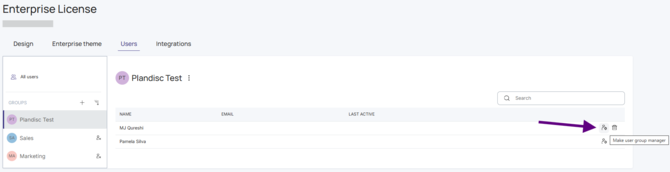
Make a colleague a group admin
Group admins help you manage a group. A group admin can:
- Add and remove users
- Change the group’s settings
Group admins can’t delete the group.
Share a plandisc with a group
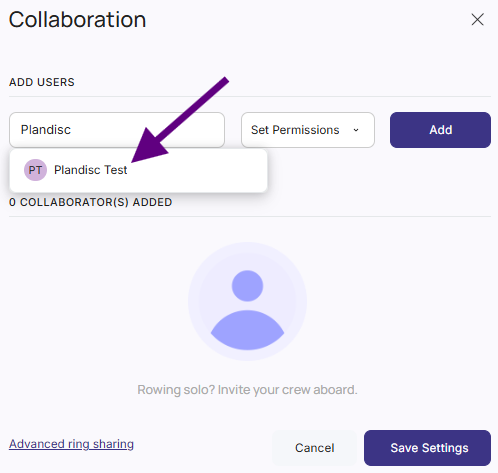
When you share a plandisc, choose the group as the recipient. Everyone in the group gets access in one step.
You also decide what the group can do with the plandisc:
- Read: the group can view the plandisc but can’t change it.
- Edit: the group can view and change the content.
Read more about sharing in Collaborate inside Plandisc.