
Copying a plandisc (also called duplicating) gives you a new plandisc with the same content. It’s a quick way to reuse a plan for a new year or team, or to keep a version before you make big changes. The original plandisc stays the same.
Who can copy a plandisc
Anyone with access to a plandisc can copy it. That includes the owner and every collaborator, even collaborators with read-only rights.
What gets copied
- Rings (all of them, or only the ones you choose)
- Activities
- Labels
- Tasks
Collaborators are not copied. You’re the owner of the new plandisc, and it isn’t shared with anyone yet. To work on it with others, share it again. See Invite collaborators.
Copy a plandisc
- Open the plandisc you want to copy. You can find it on your Dashboard or under My plandiscs in the left menu.
- At the top of the left panel, click the three dots (...) next to Export and Share.
- Click Duplicate plandisc.
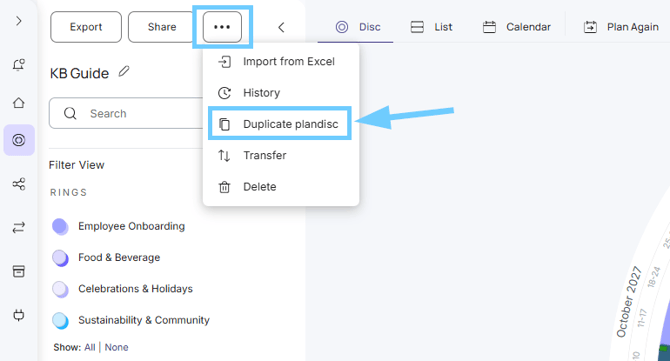
A Copy of dialog opens.
- Fill in the settings:
- Name of the new plandisc: the name is “Copy of [plandisc name]” by default. Change it to something that’s easy to recognize.
- Include rings: choose Entire plandisc to copy all rings, or pick only the rings you need.
- Open the copied plandisc: turn this on to open the new plandisc right after it’s copied.
- Include attendees: turn this on to keep the attendees on the copied activities.
- Click Copy.
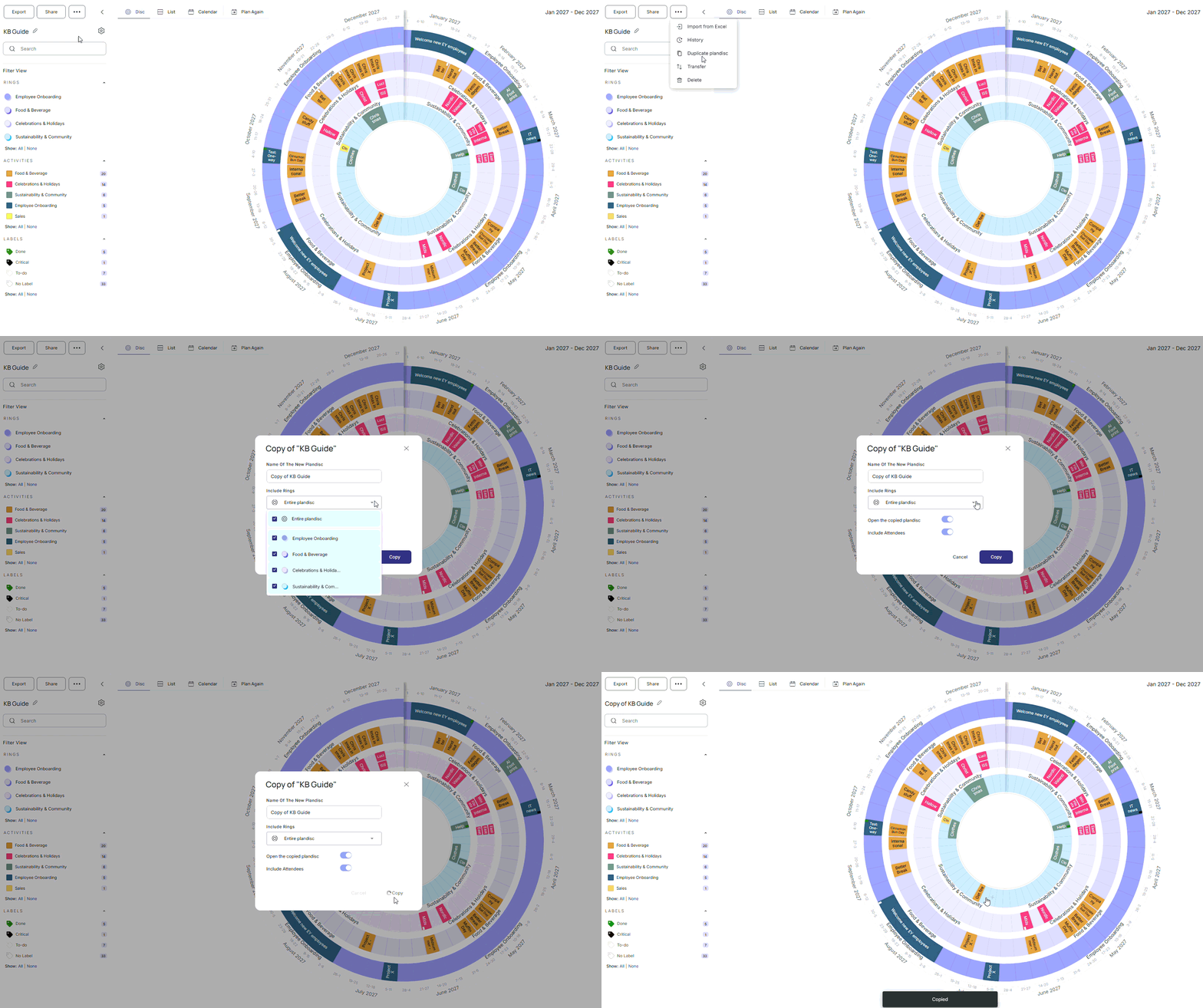
Your new plandisc is ready.
Tip: Copying is also handy before a transfer. If you transfer a plandisc, you lose access to it, so make a copy first if you want to keep one. See Transfer a plandisc to another user.