
As an admin, you can add new users to your Enterprise account yourself. It only takes a minute, and you don’t need to contact us. Each user you add gets a Plandisc license and can start planning right away.
Before you start: You need the admin role to add users. If you can’t see Enterprise in the menu on the left, you aren’t an admin. Ask the admin in your organization for help.
Tip: Set default roles first
Default roles decide what new users can do in Plandisc. If you set them before you add users, everyone gets the right access from day one.
- Click Enterprise at the bottom of the menu on the left.
- Open the Users tab.
- Click the gear icon next to Add user.
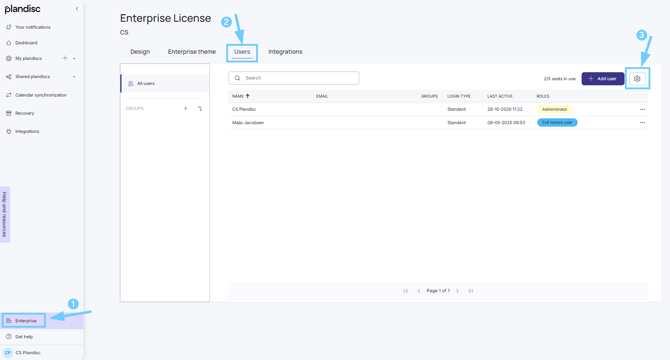
- Under Standard roles, click Set default roles.
- Choose the permissions new users should get, and click Save.
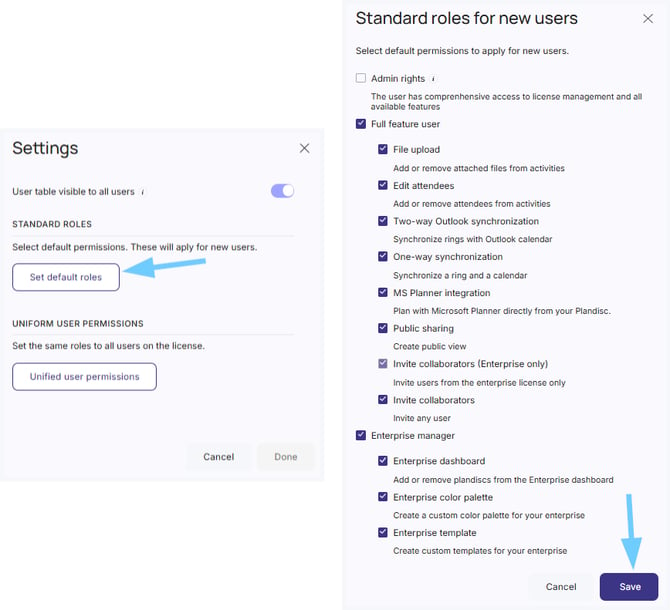
These roles only apply to users you add from now on. You can still change access for each user later.
How to add a user
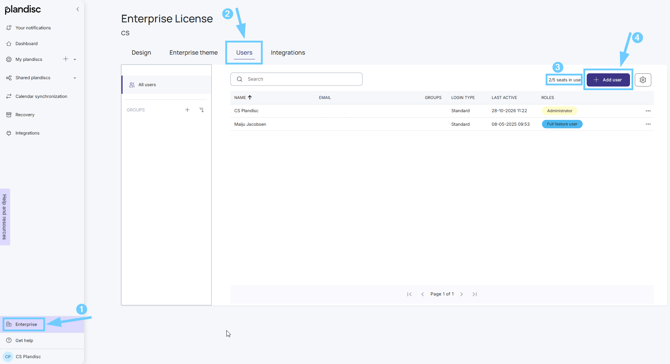
- Click Enterprise at the bottom of the menu on the left.
- Open the Users tab.
- Check how many seats you have left. You can see this next to the Add user button, for example “2/5 seats in use.”
- Click Add user.
- Enter the user’s email address.
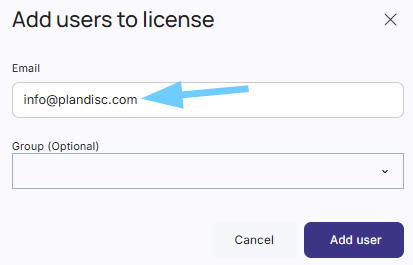
- Add the user to a group if you want to. You can skip this and do it later.
- Click Add user.
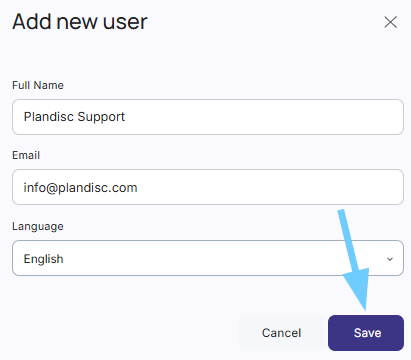
- In the Add new user window, enter the user’s full name. The email address is already filled in.
- Choose the user’s language.
- Click Save.
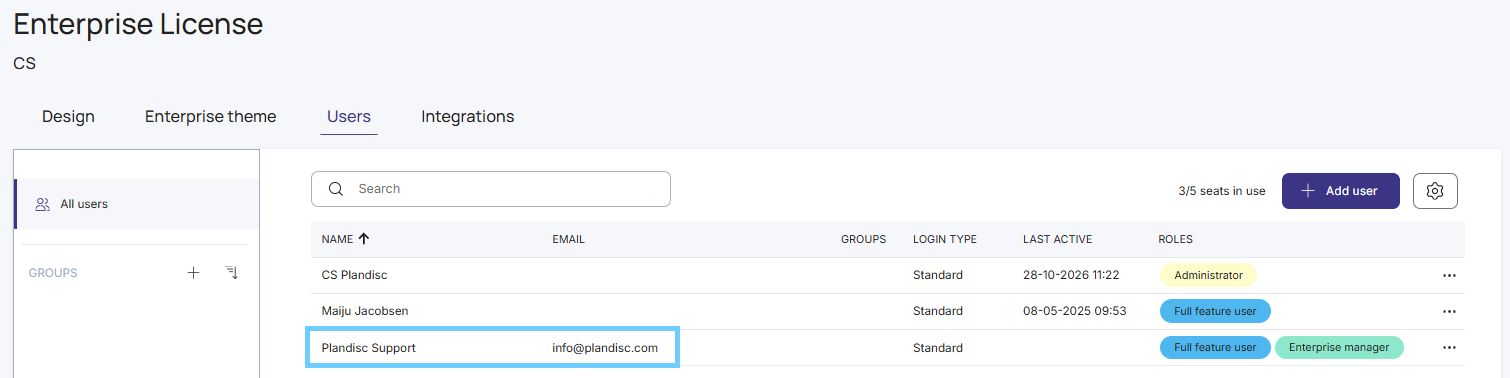
The new user now shows up in the list.
What happens next
The new user gets an email from Plandisc. The email tells them they’ve been added to your Enterprise account. They don’t need anything else from you to get started.
What you see in the user list
The list gives you an overview of everyone in your Enterprise:
- Name and email
- Groups the user belongs to
- Login type, for example Standard, Standard (MFA), or Azure AD
- Last active, which shows when the user last used Plandisc
- User roles, which show what each user has access to
If all your seats are in use
You can only add as many users as your license has seats. If you need more, contact us and we’ll help you add seats to your agreement.