
Calendar view
See six months of your plan at a glance
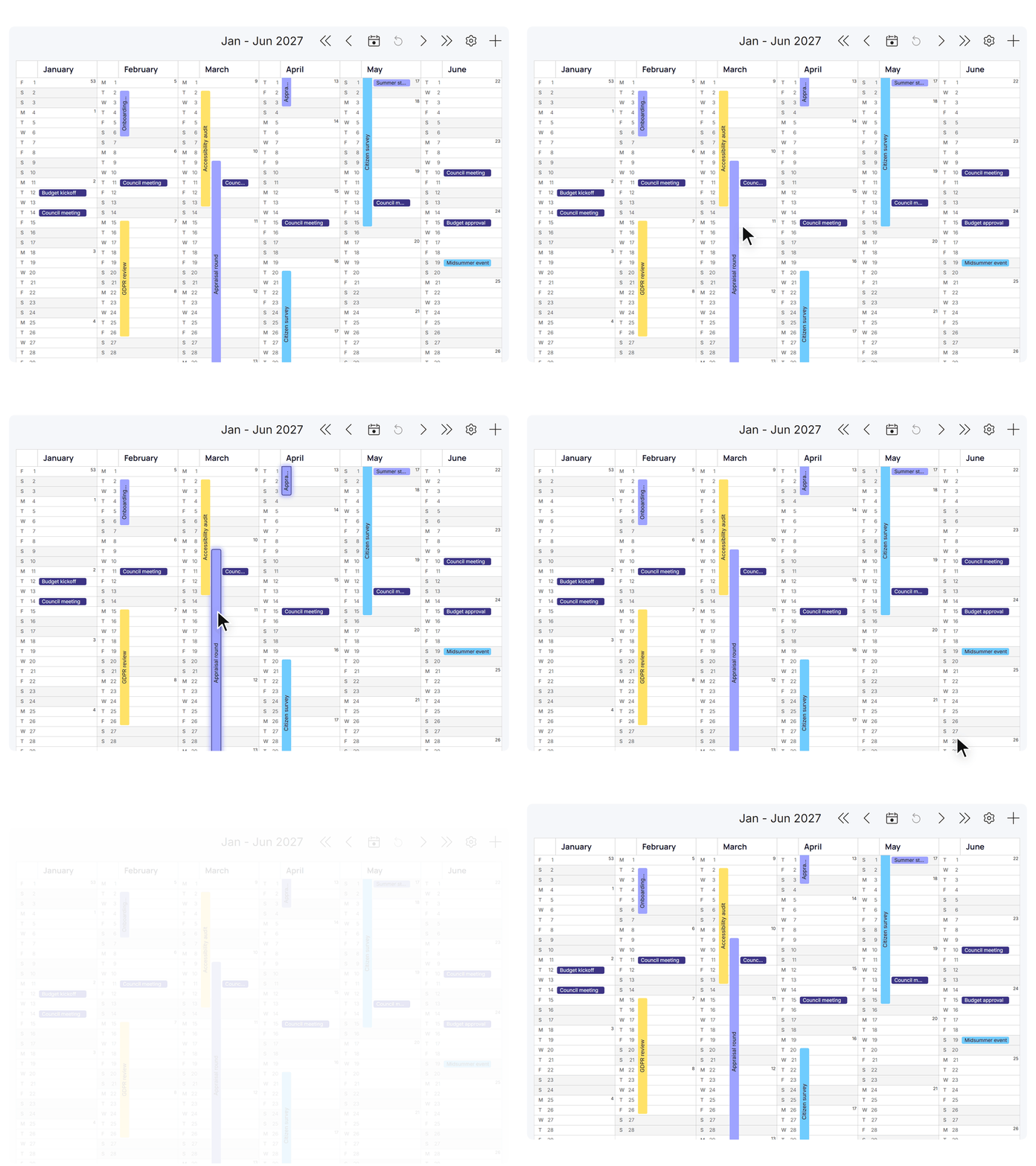
The calendar view now has a half-year option. See two quarters of your plandisc in a familiar calendar layout, with the same activities, colors, and filters as your annual wheel. Change something in one view, and it changes in all of them.
Calendar view
See six months of your plan at a glance
The calendar view now has a half-year option. See two quarters of your plandisc in a familiar calendar layout, with the same activities, colors, and filters as your annual wheel. Change something in one view, and it changes in all of them.
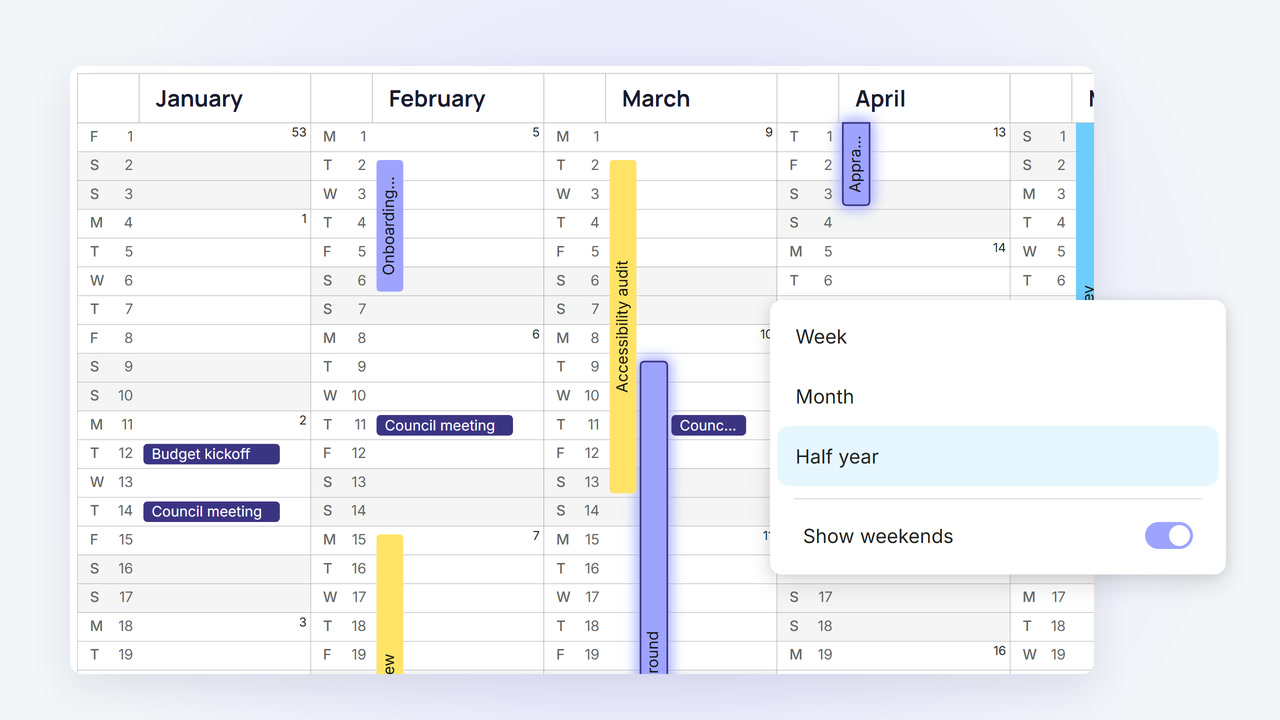
Zoom from the whole year to the next six months, without keeping a second calendar on the side.
Chosen by a lot of businesses, regardless of size or sector










The view between the year and the month
How does this help you plan better?
The annual wheel shows the whole year. The monthly calendar shows the next few weeks. But the planning that keeps you busy usually sits in between: the semester, the budget half, the run-up to the busy season.
The half-year view gives you that middle distance. Two quarters on one screen, and no extra spreadsheet or printout to keep in sync.

One plan, every view
The budget approval moves from June 12 to June 19. In the half-year view, you drag it there. The wheel, the list, and the Outlook calendars synced to your plandisc follow along.
There's still only one plan. You just choose how much of it you want to see: the whole year, six months, a month, or a week.
Filter by ring, activity group, or label to keep the view on one team or one project.
Step-by-step
How to switch to the half-year view
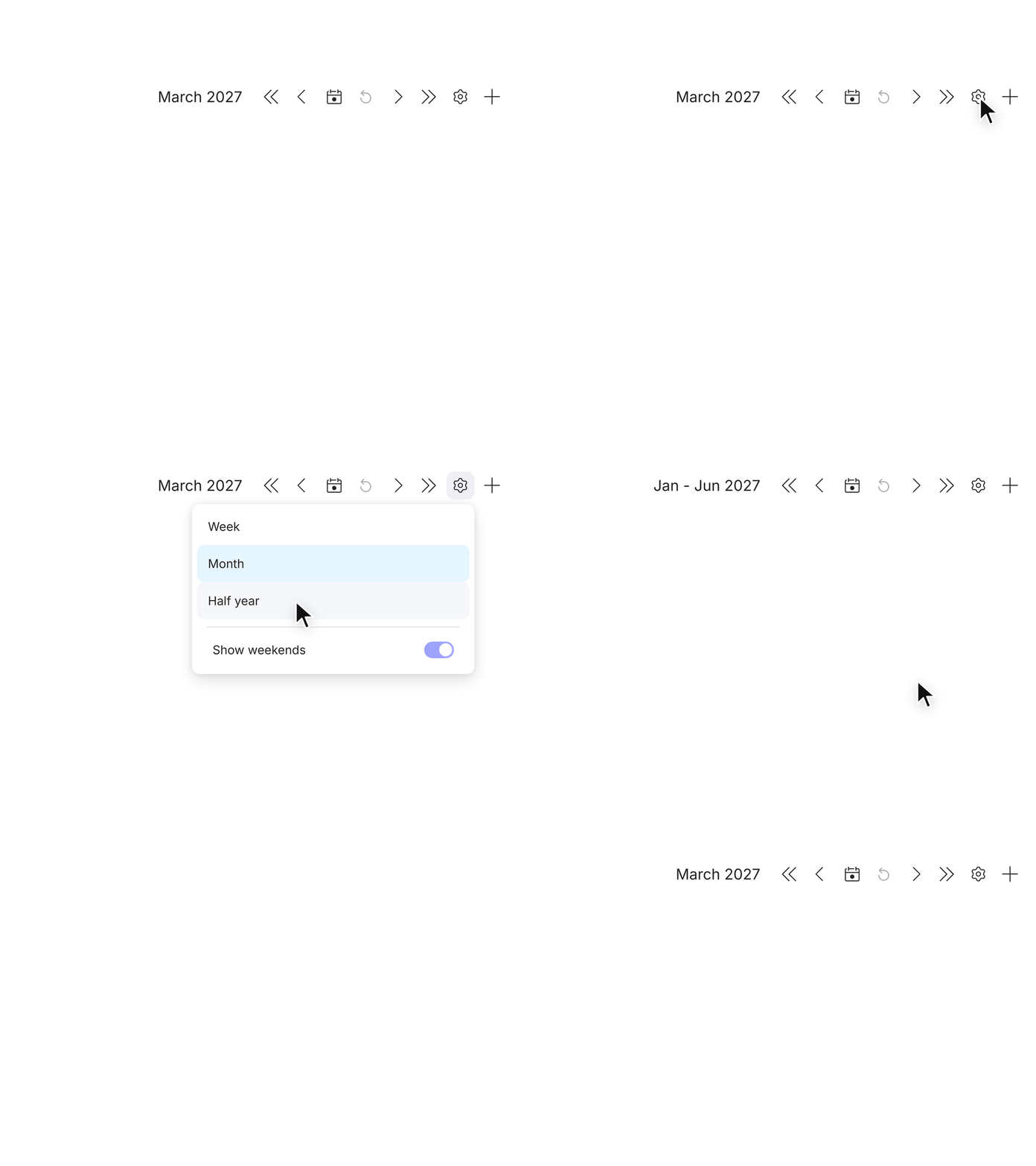
Open the calendar view and choose Half year.
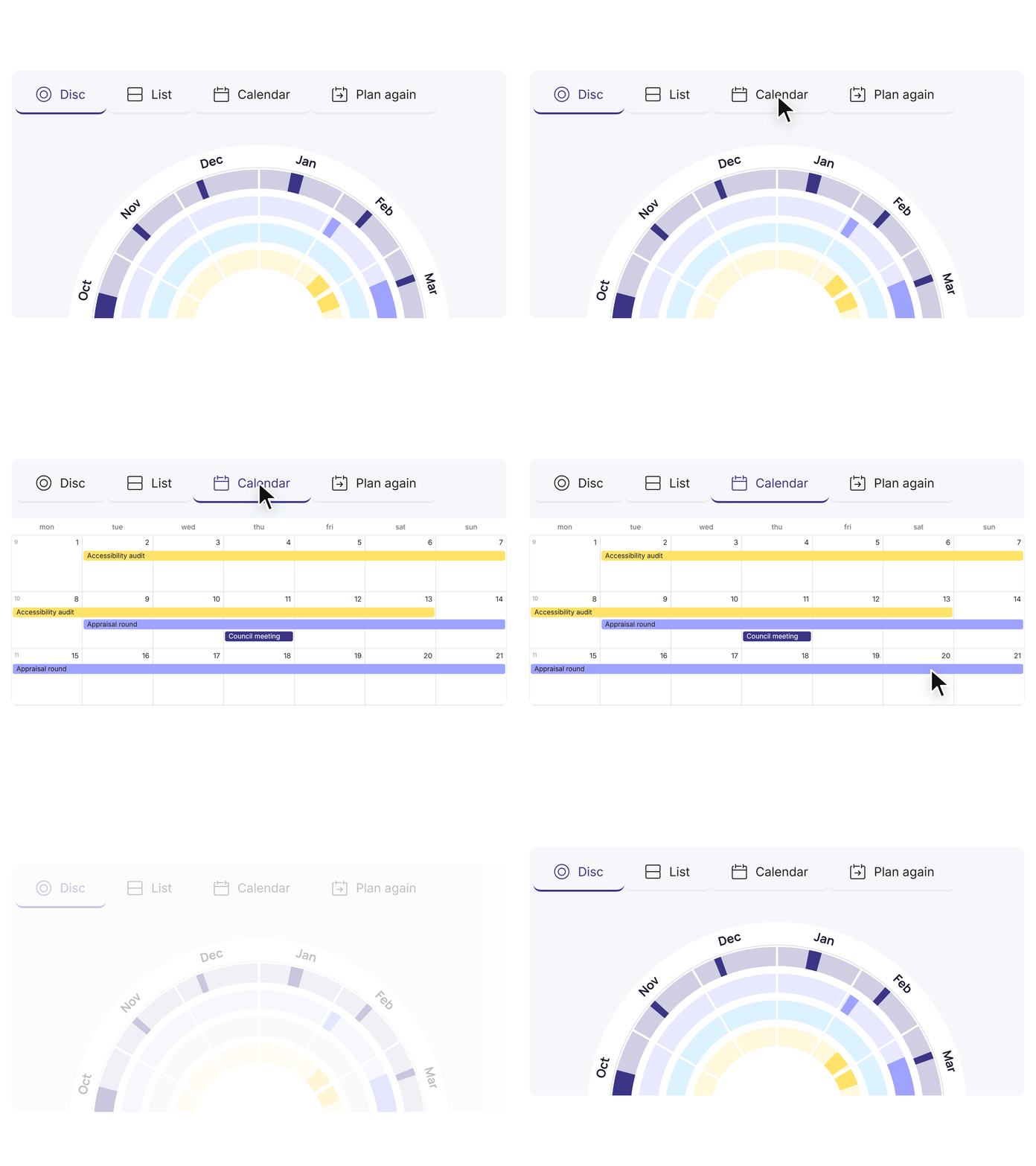
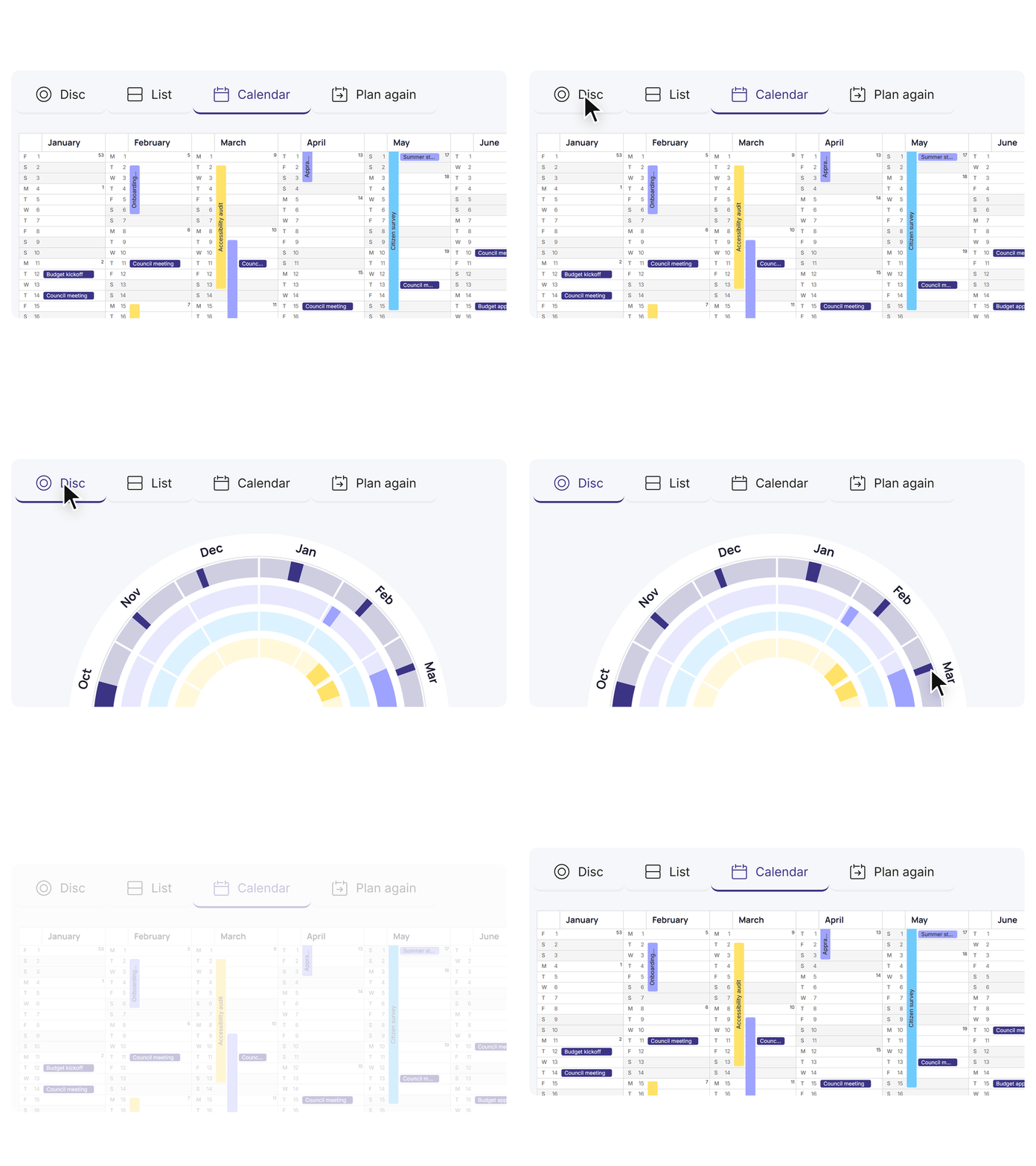
Click Calendar
In your plandisc, click Calendar in the view switcher.